In short. Containers are ephemeral, so a monitoring model built around named hosts breaks immediately — the thing you were watching is gone and something else took its place. What stays stable is the service, so metrics and alerts belong on that rather than on any particular instance.
Why Container Monitoring Is Different
Docker containers are ephemeral. They start, stop, scale up, and scale down automatically. A container running now may not exist in five minutes. Traditional server monitoring — where you track long-lived hosts with static IPs — breaks in a containerized environment. You need monitoring that adapts to dynamic infrastructure.
Container monitoring must handle: short-lived instances, high cardinality (hundreds or thousands of containers), shared host resources, container orchestration events, and the layered architecture of containers running inside hosts running inside clusters.
Key Metrics to Monitor
CPU
- CPU usage — percentage of allocated CPU consumed. In Docker, this is relative to the container's CPU limit, not the host total
- CPU throttling — when a container hits its CPU limit, the kernel throttles it. High throttling means the limit is too low or the application needs optimization
- CPU shares — relative weight when competing with other containers for CPU time
# Check container CPU usage
docker stats --no-stream --format \
    "table {{.Name}}\t{{.CPUPerc}}\t{{.MemUsage}}"

# Output:
# NAME          CPU %     MEM USAGE / LIMIT
# web-app       15.23%    256MiB / 512MiB
# redis         2.41%     64MiB / 128MiB
# postgres      8.76%     512MiB / 1GiB
Memory
- Memory usage — current RSS (Resident Set Size) of the container process
- Memory limit — the maximum memory allocated. Exceeding this triggers the OOM killer, which terminates the container
- Cache memory — filesystem cache used by the container. Can be reclaimed under pressure, so distinguish it from actual application memory usage
# Memory metrics from cgroup
cat /sys/fs/cgroup/memory/docker/<container_id>/memory.usage_in_bytes
cat /sys/fs/cgroup/memory/docker/<container_id>/memory.limit_in_bytes
cat /sys/fs/cgroup/memory/docker/<container_id>/memory.stat
Network
- Network I/O — bytes sent and received per container
- Connection count — number of active TCP connections
- Packet drops — indicates network congestion or misconfiguration
- DNS resolution time — container DNS can be a bottleneck, especially with Docker's embedded DNS resolver
Disk I/O
- Disk read/write bytes — I/O throughput per container
- IOPS — I/O operations per second
- Container filesystem size — writable layer size. Growing unexpectedly indicates log accumulation or temp file leaks
Container Lifecycle
- Restart count — frequent restarts indicate crashes or health check failures
- Uptime — how long the container has been running
- Exit codes — 0 = normal, 1 = application error, 137 = OOM killed, 143 = SIGTERM
- Health check status — Docker health check results (healthy, unhealthy, starting)
Monitoring Stack Architecture
A typical container monitoring stack:
Containers → cAdvisor (metrics collection)
                ↓
           Prometheus (time-series storage)
                ↓
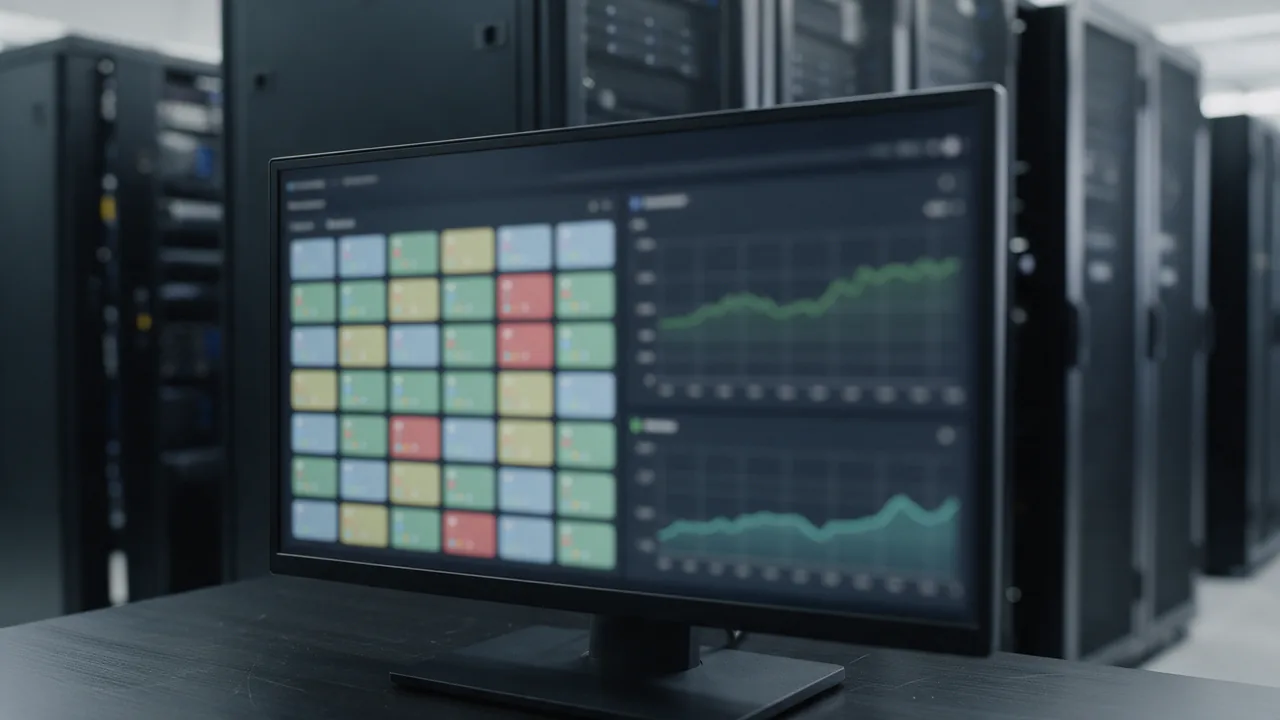
           Grafana (visualization + dashboards)
                ↓
           Alertmanager (notifications)
cAdvisor
Google's Container Advisor runs as a container itself and automatically discovers and collects metrics from all containers on the host:
# Run cAdvisor
docker run -d \
    --name cadvisor \
    --volume /:/rootfs:ro \
    --volume /var/run:/var/run:ro \
    --volume /sys:/sys:ro \
    --volume /var/lib/docker/:/var/lib/docker:ro \
    --publish 8080:8080 \
    gcr.io/cadvisor/cadvisor:latest
Prometheus Configuration
# prometheus.yml
global:
  scrape_interval: 15s

scrape_configs:
  - job_name: 'cadvisor'
    static_configs:
      - targets: ['cadvisor:8080']

  - job_name: 'node-exporter'
    static_configs:
      - targets: ['node-exporter:9100']

  # Docker daemon metrics
  - job_name: 'docker'
    static_configs:
      - targets: ['host.docker.internal:9323']
Essential Alerts
Configure alerts for conditions that require immediate attention:
# Prometheus alerting rules
groups:
  - name: container_alerts
    rules:
      # Container using >90% of memory limit
      - alert: ContainerMemoryHigh
        expr: |
          container_memory_usage_bytes /
          container_spec_memory_limit_bytes > 0.9
        for: 5m
        labels:
          severity: warning
        annotations:
          summary: "Container {{ $labels.name }} memory > 90%"

      # Container restarting frequently
      - alert: ContainerRestartLoop
        expr: |
          increase(container_restart_count[1h]) > 3
        labels:
          severity: critical
        annotations:
          summary: "Container {{ $labels.name }} restarted 3+ times in 1h"

      # Container CPU throttled
      - alert: ContainerCPUThrottled
        expr: |
          rate(container_cpu_cfs_throttled_seconds_total[5m]) > 0.5
        for: 10m
        labels:
          severity: warning

      # Container unhealthy
      - alert: ContainerUnhealthy
        expr: container_health_status{status="unhealthy"} == 1
        for: 1m
        labels:
          severity: critical
Docker Compose Health Checks
# docker-compose.yml
services:
  web:
    image: myapp:latest
    healthcheck:
      test: ["CMD", "curl", "-f", "http://localhost:8080/health"]
      interval: 30s
      timeout: 10s
      retries: 3
      start_period: 40s
    deploy:
      resources:
        limits:
          cpus: '2.0'
          memory: 512M
        reservations:
          cpus: '0.5'
          memory: 256M
Log Monitoring
Container logs are equally important. The standard approach:
- stdout/stderr — applications should log to stdout. Docker captures these and makes them available via
docker logs - Log drivers — Docker supports multiple log drivers: json-file (default), syslog, fluentd, awslogs, gelf
- Centralized logging — ship logs to ELK (Elasticsearch, Logstash, Kibana), Loki, or a cloud service for aggregation and search
# Configure Fluentd log driver
docker run -d \
    --log-driver=fluentd \
    --log-opt fluentd-address=localhost:24224 \
    --log-opt tag="docker.{{.Name}}" \
    myapp:latest
Monitoring with External Tools
While internal metrics (CPU, memory, restarts) tell you about container health, external monitoring tells you about service health — what users actually experience. Use external uptime monitoring (like Enterno.io) to check that your containerized services respond correctly from outside your network. This catches issues that internal metrics miss: DNS problems, load balancer misconfigurations, TLS certificate issues, and network-level failures.
Best Practices
- Always set resource limits — containers without memory limits can consume all host memory and crash other containers
- Use labels for organization — label containers with service name, team, environment. This makes dashboards and alerts meaningful
- Monitor the host, not just containers — disk space, host CPU, kernel memory, and Docker daemon health affect all containers
- Implement health checks — Docker health checks enable automatic restart of unhealthy containers and prevent traffic routing to broken instances
- Set log rotation — without rotation, container logs can fill the disk. Configure
max-sizeandmax-fileoptions - Track image vulnerabilities — monitor base images for known CVEs. Tools: Trivy, Snyk, Docker Scout
- Alert on exit code 137 — this means OOM kill. The container needs more memory or has a memory leak
- Separate monitoring from monitored — run your monitoring stack on separate infrastructure so it survives the failures it needs to detect
Conclusion
Docker container monitoring requires a shift from static host monitoring to dynamic, label-based, multi-layer observability. Track CPU, memory, network, and disk at the container level; lifecycle events like restarts and OOM kills; application-level health checks; and external service availability. Use cAdvisor, Prometheus, and Grafana as your monitoring foundation, complement with centralized logging, and always combine internal metrics with external uptime monitoring for complete visibility into your containerized services.