Short answer. Connecting a domain to a website builder is two separate operations: at your registrar you point the domain at the platform's address with an A record, and in the project settings you tell the platform which site that domain belongs to. Until both are done you get either "site not found" or somebody else's placeholder. The platform issues the certificate itself, but only after the records have propagated.
What actually happens when you "connect a domain"
A domain leads nowhere on its own. It is a name with a set of DNS records, and one of them — the A record — tells the browser which IP address to fetch the content from. A website builder keeps your site on its own servers, so connecting a domain comes down to making the name point at those servers.
The second step matters just as much and is the one people skip. Tens of thousands of sites live on a single platform IP. The server tells them apart by the name the browser sends in the request. If you point the domain at the platform but never attach it to your project in the panel, the server receives an unknown name and answers with a placeholder or an error — technically correct behaviour, it simply does not know whose domain this is.
Never copy the platform's IP address from someone else's tutorial or an old article. Addresses change, and a two-year-old guide will confidently send you to a server that no longer exists. The current values always live in your own project settings, in the domain section — take them from there.
Two scenarios: domain at a registrar or inside the builder
Where the domain was bought decides where you will be editing records.
- Domain bought at a registrar (the usual case). You manage the DNS records — either in the registrar's panel or at whichever DNS host the domain's NS records point to. That gives you full control: mail can stay on the old server, verification TXT records can be added, subdomains can be created.
- Domain bought inside the builder. The platform is then both registrar and DNS host: connecting takes one click, but record management is limited to what its interface exposes. The moment you need something non-standard — mail, a verification record, a subdomain pointing elsewhere — you run into those limits.
Before changing anything it pays to see where the domain points now and whose nameservers it uses: that alone tells you which panel you will be working in. The fastest route is a WHOIS lookup and a DNS records check. The difference between "change the NS" and "change the A record" is covered in the guide on connecting a domain to hosting.
Step by step: which records you need
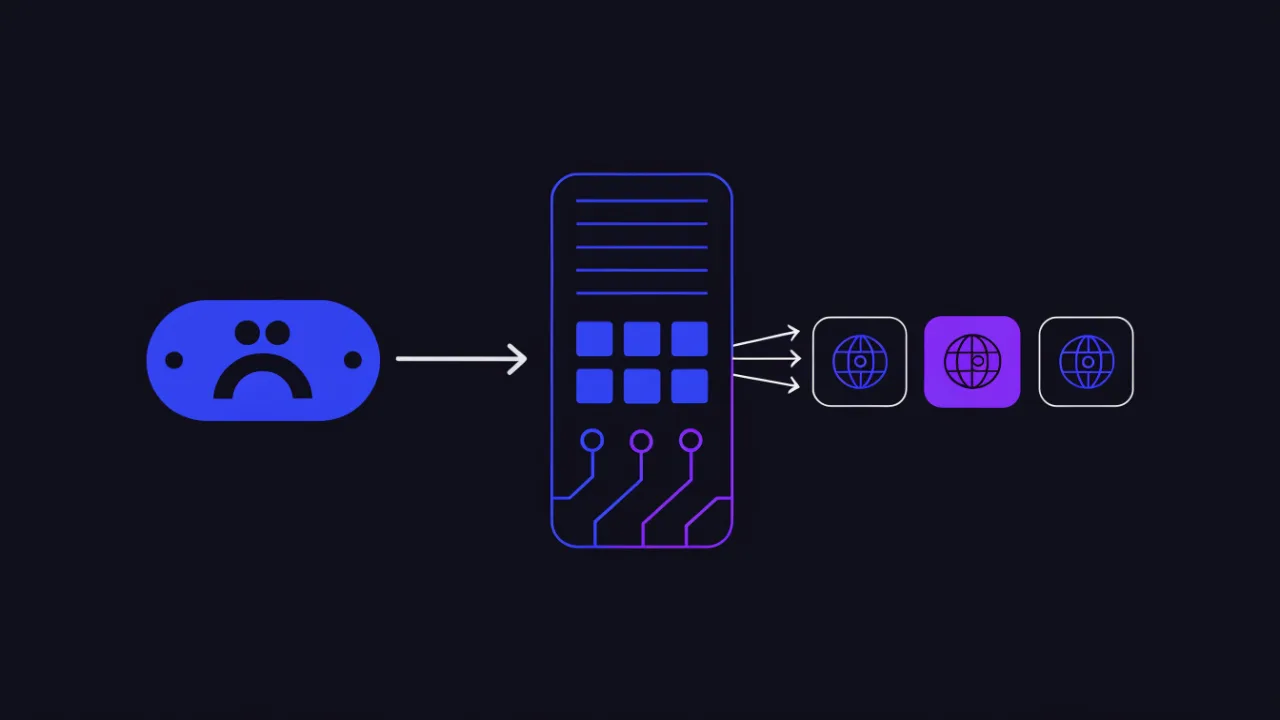
The minimum for a builder-hosted site is two records: the apex domain and www.
- Lower the TTL in advance. A few hours before the move, set the TTL on the records you will change to 300–600 seconds. Resolvers then pick up the change quickly instead of a day later. Once the move succeeds you can raise it again; why this matters is covered in the DNS TTL guide.
- The apex (
@) — anArecord pointing at the platform IP taken from your project settings. Some DNS hosts support ALIAS or ANAME, which let you point at the platform's hostname instead of an IP — more robust, because an address change then needs no edit from you. - The
wwwsubdomain — usually aCNAMEto the hostname the platform gives you. The difference is explained in CNAME vs A records: a CNAME at the apex is impossible by the standard, so it is either an A record or a vendor-specific ALIAS/ANAME. - Delete conflicting records. The old host's A record, a second "just in case" A record, a forgotten AAAA record pointing at the old server's IPv6 address — each of them sends part of your visitors to the old site. AAAA is the sneaky one: a visitor with IPv6 will prefer it and keep seeing the old version while you insist the move is done.
- Add the domain in the project settings and wait for the platform to confirm it sees the right records.
# What to check before and after editing records
dig example.com A +short
dig www.example.com CNAME +short
dig example.com AAAA +short        # should be empty if the platform has no IPv6
dig example.com NS +short          # whose DNS host — that is where you edit records

# Confirm the platform server answers for your domain specifically
curl -sI https://example.com | head -n 5
Why the SSL certificate is not being issued
Builders issue certificates automatically, but the automation has preconditions. It contacts a certificate authority and has to prove the domain is genuinely under the platform's control — which means the records must have propagated first. Hence the rule: the certificate appears some time after the records, not together with them.
Common reasons issuance never happens at all:
- Records have not propagated or propagated only partially. Check from several vantage points rather than from your own browser — with the DNS propagation check; why it takes hours is explained in DNS propagation explained.
- A leftover CAA record from the previous provider. It lists the certificate authorities allowed to issue for the domain. If the platform's authority is not on that list, issuance is blocked silently and permanently. See the CAA record guide.
- The domain is proxied through an intermediate service with proxying enabled. The request never reaches the platform directly, ownership validation fails, and visitors get a certificate error even though the site loads.
- Only the apex is connected and
wwwis forgotten (or the other way round). The certificate covers one name, and on the other the browser shows "not secure".
What the server actually presents — which certificate, for which names, from which authority — is shown by the SSL checker; how to read its output is covered in checking an SSL certificate.

What happens to email on that domain
Changing the A record leaves mail alone; changing the nameservers moves the entire zone. Outgoing mail keeps working either way, so a missing inbound flow is usually noticed a day or two later, when a client asks why nobody replied. Write down the whole zone before the move instead of trusting memory.
This is the case where the cost of a mistake is high and the mistake is not obvious.
- You change only the A record and CNAME — mail is unaffected. MX records stay where they are and delivery continues.
- You change the nameservers (moving the domain to the platform's DNS) — the whole zone moves. If MX, SPF, DKIM and DMARC are not recreated in the new zone, inbound mail stops.
# Dump the current zone BEFORE switching nameservers
for t in A AAAA CNAME MX TXT NS CAA SRV; do
  echo "== $t"; dig example.com $t +short
done

# Mail records live on service names — these are the ones people forget
dig _dmarc.example.com TXT +short
dig selector._domainkey.example.com TXT +short   # selector is shown in your mail panel
So before switching nameservers, export every record the domain has, not just the ones you remember. Moving mail records correctly is covered in MX record setup and email on your own domain, and the switch procedure itself in changing your DNS server. To confirm mail records survived, use the MX lookup and the domain email check.
Typical failures and what they mean
| What the visitor sees | Cause | What to do |
|---|---|---|
| The platform's "site not found" page | Records point at the platform, but the domain is not attached to a project | Add the domain in project settings and wait for confirmation |
| The old site loads | A leftover A or AAAA record, or a resolver cache | Remove the extra records, check dig … AAAA, wait out the TTL |
ERR_NAME_NOT_RESOLVED | No record at all, or the domain is not delegated to the DNS you are editing | Match the domain's NS against the panel you edit in; see the error guide |
| "Your connection is not private" | The certificate is not issued yet, does not cover both names, or CAA blocks it | Check the names in the certificate and the CAA record |
www works, the apex does not (or vice versa) | Only one of the two names is configured | Add the missing record and make sure the certificate covers both |
| Redirect loop | A redirect is configured both on the platform and on an intermediate service | Keep the redirect in one place only; the chain is visible in the redirect checker |
| Works for you, not for the client | Your resolver has updated, theirs has not | Check from several locations and wait out the previous TTL |
It is worth keeping in mind that "it does not open for me" and "the site is down" are different claims. Before editing records a second time, rule out your own browser or ISP cache; the general procedure is in this site can't be reached.

How long to wait and what counts as done
Records do not spread instantly: every resolver keeps the previous answer until its TTL expires. If the TTL was a day, some visitors will keep hitting the old address for close to a day — and nothing you do on your side flushes those caches. That is exactly why the TTL is lowered in advance rather than on moving day.

The move counts as finished when all of the following hold at once:
- the apex and
wwwresolve to the platform address from several locations; - no stray A or AAAA records remain;
- the certificate is issued and covers both names;
- one name redirects to the other in a single hop;
- mail records are intact, if the domain carries mail.
How to verify the result
- DNS records check — what the zone actually serves: A, AAAA, CNAME, MX, CAA.
- Propagation check — whether resolvers other than yours have picked up the change.
- SSL check — which names the certificate covers and when it expires.
- Redirect checker — how many hops between
wwwand the apex, and whether there is a loop. - Header check — which server answers, and whether anything still comes from the old host.
- Uptime monitoring — so that a dead domain or an expired certificate is not first reported by a customer.
Frequently asked questions
Do I have to move the domain to the builder's nameservers?
No, and often you should not. An A record and a CNAME in the current zone are enough. Moving the NS makes sense only if you would rather manage every record in one panel and are ready to recreate mail and verification records there.
Can I connect a subdomain instead of the main domain?
Yes, and it is the safest way to try things out: a subdomain is connected with a single CNAME while the main site and mail are untouched. Whether a landing page belongs on a subdomain or in a subdirectory is covered in subdomain vs subdirectory.
The domain is connected but there is no padlock. What now?
Wait: automatic issuance takes from minutes to a few hours after the records propagate. If nothing changes within a day, check the CAA record, whether proxying is enabled, and that both names — apex and www — are connected.
Why does the site still show the old content?
Almost always caching: either the resolver still returns the previous IP or the browser is holding the page. Check the actual address with dig and open the site in a private window. If the address is already new but the content is old, the cache is on the platform or CDN side, not in DNS.
What happens to the old hosting after the move?
It keeps running and serving the old site to anyone still arriving via the old record. Do not cancel it immediately: wait until traffic has fully moved over, and keep a backup before deleting anything.
Do I need to tell search engines about the move?
If the address did not change and only the server did, no special action is needed. Do confirm that the site returns a 200, that the redirect between www and the apex is unchanged, and that the certificate is valid — those three things are what affects indexing.
Domain connection checklist
- TTL on the records you will change was lowered in advance.
- Current A and CNAME values came from your project settings, not from someone else's tutorial.
- Both names are configured: the apex and
www. - Old A and AAAA records from the previous host are deleted.
- The domain is added in project settings and the platform confirms the connection.
- Propagation was checked from several locations, not just in your own browser.
- The certificate is issued and covers both the apex and
www. - There is a single hop between
wwwand the apex, with no loop. - Mail records were verified if the domain carries mail — especially after an NS change.
- Uptime and certificate expiry monitoring is in place.