Short answer. Shared hosting is an account on a server you share with hundreds of others: hard limits, no root. A VPS (also sold as VDS) is a virtual machine with root and guaranteed resources. A dedicated server is the whole physical box. Cloud is a pool of resources billed by the hour and driven by an API. The choice is decided by isolation needs, who administers the OS and how uneven your load is — not by a traffic number.
Shared, VPS, dedicated, cloud: what physically sits behind each
The difference between hosting types is not price or tariff naming. It is where the boundary of your responsibility runs and what exactly you share with other customers.
Shared hosting
Your site is a directory and a system user on a machine that also hosts dozens or hundreds of other accounts. The web server (Apache, nginx, LiteSpeed), the PHP runtime, MySQL/MariaDB, mail and cron daemons are shared, and the hosting company decides their versions and settings. You get a control panel, FTP/SFTP and sometimes a restricted shell. Kernel, init system, firewall and ports are not yours. Isolation comes from filesystem permissions, per-user PHP-FPM pools and kernel-level limits rather than from virtualisation.
VPS / VDS
A physical server is sliced into virtual machines. With hardware virtualisation (KVM) every machine gets its own kernel, its own device set and almost any operating system you like. With container virtualisation (OpenVZ, LXC, Virtuozzo) there is one shared kernel and isolation is built from kernel namespaces and cgroups. Either way you get root, your own IP and full responsibility for updates, backups and security.
Dedicated server
A whole physical machine: specific CPUs, memory modules, disks and a RAID controller, plus IPMI/KVM-over-IP for console access and power cycling. No neighbours and no hypervisor above you, so performance is predictable — but a failed disk or power supply is replaced by hand, which takes hours instead of the seconds a live migration would take.
Cloud
An instance runs in a pool of hypervisors on top of network storage. vCPU, RAM, disk, IP and traffic are billed by time, machines are created and destroyed through an API or Terraform, and managed services sit next door: databases, load balancers, object storage, snapshots. The key difference from a VPS is not power — it is elasticity and programmability.
| Criterion | Shared hosting | VPS / VDS | Dedicated server | Cloud |
|---|---|---|---|---|
| Resource isolation | Weak: quotas on top of shared daemons | Medium to high: KVM stronger than containers | Complete: the hardware is yours | Medium to high, like a VPS, plus network storage |
| Who administers the OS | The hosting provider | You, unless the plan is managed | You; the provider covers hardware and network | You; some services can be managed |
| Root access | No | Yes | Yes, plus BIOS/IPMI | Yes |
| Scaling | Change plan; low ceiling | Resize with a reboot; ceiling is the physical node | Hardware upgrade or migration to another box | Vertical and horizontal, in minutes, via API |
| Typical point where it gets tight | Dynamic pages at tens of thousands of visits a month; spikes hurt | Hundreds of thousands of visits with proper caching | Constant heavy 24/7 load, large databases | Uneven load and high-availability requirements |
| Main risks | Noisy neighbours, hidden limits, shared IP reputation | Overselling, steal time, security is on you | Single point of failure, hardware replacement time | Runaway bill, paid egress and IOPS, provider API lock-in |
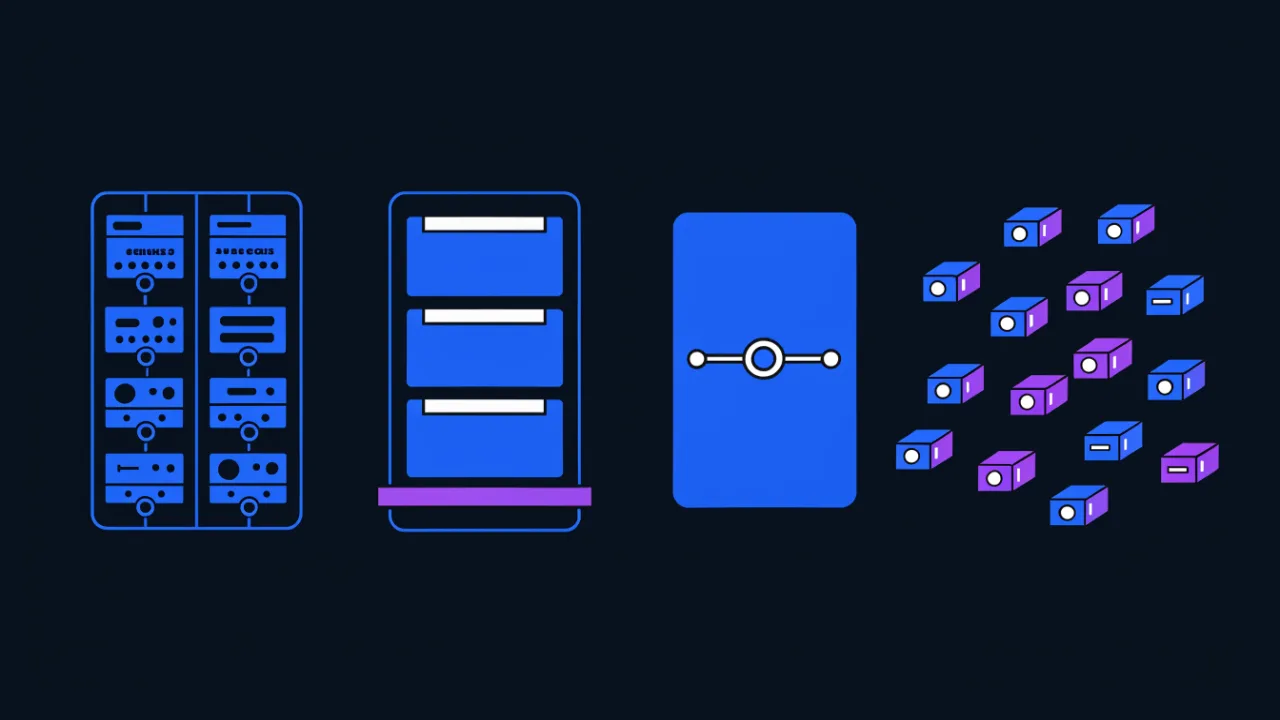
Shared hosting explained: limits and noisy neighbours
Shared hosting sells you a share of compute, not the compute itself. The model works while average account load stays low and spikes do not overlap. To stop one customer from sinking the node, the provider applies limits that most people discover only during an outage.
- Inodes — a count of files, not gigabytes. Template caches, thousands of thumbnails, a session directory and old backups eat the quota while disk usage still shows 30–40 %. The symptom is "disk full" on a mostly empty account.
- CPU time — a percentage of a core or a CPU-seconds budget. When you exceed it, processes are throttled rather than killed: a page that rendered in 200 ms starts taking seconds.
- Process and concurrent request limits (NPROC, entry processes). Once the limit is hit, extra requests get an error instead of a page — on CloudLinux this is the familiar
508 Resource Limit Is Reached. - Per-account memory — kills catalogue imports, feed generation and archive builds halfway through.
- PHP limits:
max_execution_time,memory_limit,max_input_vars, upload size. These are what break dumps, migrations and long-running handlers. - I/O and IOPS. This is where noisy neighbours live: somebody else's broken plugin writing megabytes of logs degrades response time for everyone on the node.
How to tell you have hit a ceiling rather than written a slow site: response time varies several-fold with unchanged code, 5xx and 508 errors appear at peak hours, cron jobs no longer finish in their window, backups time out, and the panel graph for CPU or processes sits against the limit.
# Shared hosting: what the account actually runs into
df -h .                              # disk space
df -i .                              # INODES: they run out before gigabytes do
find . -xdev -type f | wc -l         # how many files you really have
ulimit -u                            # process limit for the account
ulimit -n                            # open file limit

# PHP limits that break imports, backups and dumps
php -r 'foreach (["max_execution_time","memory_limit","max_input_vars",
  "post_max_size","upload_max_filesize"] as $k)
  printf("%s = %s\n", $k, ini_get($k));'

# Where the response time goes (run from your own machine)
curl -o /dev/null -s -w \
 'dns=%{time_namelookup} tcp=%{time_connect} tls=%{time_appconnect} ttfb=%{time_starttransfer} total=%{time_total} code=%{http_code}\n' \
 https://example.com/
Unstable TTFB is a more honest signal than average TTFB. If the same URL answers in 200 ms one minute and 2 s the next with no code changes and no traffic growth, you are sharing a resource — and moving will fix it faster than query tuning.
A shared platform also means a shared IP address. Its reputation with mail and anti-spam systems is the sum of every neighbour's behaviour, which makes deliverability from shared hosting less predictable. For diagnosing slow responses in general, see why a website loads slowly and how to fix it.
VPS vs VDS: what the labels mean and what to check instead
Short answer: in most markets VPS and VDS are marketing synonyms, and picking one "because the letters are better" makes no sense. The historical distinction was real: VDS (virtual dedicated server) meant a hardware-virtualised machine with its own kernel, while VPS (virtual private server) meant a container sharing the host kernel. Today the same provider may label a KVM machine a VPS and a container a VDS, or the other way round.
Judge the specification, not the acronym.
Virtualisation type
KVM gives you a full virtual machine: your own kernel, your own modules (so your firewall, VPN or container runtime works as documented), your own swap, installation from any ISO and predictable behaviour. OpenVZ/LXC/Virtuozzo gives you a container: the kernel is shared with the host, you cannot load modules or upgrade the kernel, and some /proc counters report the host rather than you. Containers are cheaper and pack more densely, which is exactly why overselling is more common there.
Dedicated core or oversubscribed one
"2 vCPU" says nothing about how many virtual cores the provider placed on one physical core. The practical indicator is steal time: the share of cycles when your machine was ready to run but the hypervisor gave the slot to someone else. A few percent is tolerable; a consistent double-digit figure means you are paying for someone else's workload.
Memory, disk and network
Check whether memory is guaranteed or advertised as "up to" (burst), whether swap exists, what the disk actually is (NVMe, SSD, HDD) and whether IOPS and bandwidth are capped. A cheap plan on network storage with a hard IOPS cap can be slower than the shared hosting you are leaving. Ask separately about port speed, traffic allowance and the price beyond it, snapshots and backups, and whether extra IPs are available.
# What is actually under you: hypervisor, container or bare metal
systemd-detect-virt                 # kvm / lxc / openvz / none (none = bare metal)
lscpu | grep -E 'Model name|^CPU\(s\)|Hypervisor vendor|Virtualization'
uname -r                            # inside a container this is the HOST kernel
ls /proc/user_beancounters          # file exists -> OpenVZ/Virtuozzo container

# Is the core really yours: st column (steal time) = cycles given to neighbours
vmstat 1 5

# Memory and swap: containers often have no swap of their own
free -m
swapon --show

# Disk type
lsblk -d -o NAME,ROTA,SIZE,MODEL     # ROTA=1 -> HDD, 0 -> SSD/NVMe
Verify virtualisation type and steal time during a trial period, not from the tariff description. Moving from a container to KVM inside the same provider almost always means a new machine and a second data migration, so it is cheaper to find out before go-live.
A ready comparison of criteria and typical configurations is in our roundup of VPS providers, and the decision logic itself is in how to choose hosting for a website.
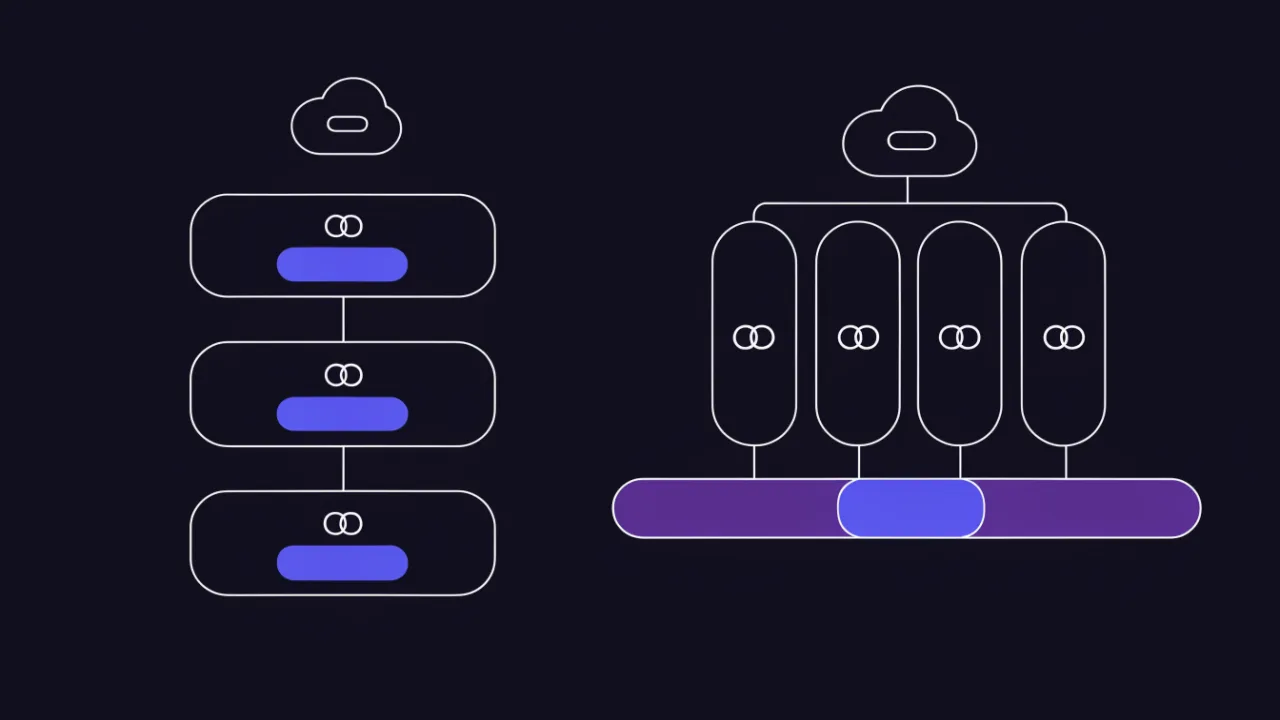
Dedicated servers: when renting metal pays off and when it is overspend
A dedicated server solves three classes of problem that virtualisation handles badly.
- Licences and requirements tied to hardware. Some commercial software is licensed per physical core or socket, or needs a stable machine identity. On a virtual machine that is either more expensive or formally out of compliance.
- Specific hardware. GPUs for inference and video processing, many local NVMe drives in RAID, enough RAM to hold the whole database, hardware keys and expansion cards.
- Isolation requirements. When a contract or regulation forbids sharing a host with unknown workloads — sensitive personal data under GDPR-style obligations, certification requirements, some payment and banking scenarios.
There is also a purely economic case: constant heavy 24/7 load. If the machine is evenly utilised around the clock, fixed-price metal is usually cheaper than the equivalent cloud instance.
When a dedicated server is overspend: load is spiky and rare; you need to resize quickly for a campaign or a season; there is no system administrator on the team; high availability matters. That last point is important — one physical machine is one point of failure. There is no live migration to another node as in the cloud, so a failed disk, DIMM or power supply means an engineer walking to the rack. High availability on dedicated hardware is built as "two machines and a load balancer", which doubles the budget immediately.
RAID is not a backup. It survives a disk failure, not a DROP TABLE, ransomware or a bad deploy. On a dedicated server, off-box copies and regular restore tests are mandatory, not optional.
Cloud hosting: resource pools, hourly billing, and when cloud costs more than a VPS
Cloud does not sell a machine; it sells the ability to take and return a resource at any moment. Hence its strengths: instances created and destroyed through an API and infrastructure-as-code, snapshots and cloned environments, autoscaling, managed databases with replication and backups, load balancers, object storage for static assets and backups, private networking between services.
Cloud wins when load is uneven (seasonality, sales, ad campaigns), when you need disposable environments for testing and releases, when you need multi-zone resilience, and when the team ships through CI/CD and does not want to configure servers by hand.
Cloud loses on cost when load is flat and predictable. An always-on instance at an hourly rate is usually more expensive than an equivalent fixed-price VPS or dedicated server. Add paid egress traffic, separate billing for snapshots, public IPs and provisioned IOPS, the margin on managed services, and the classic budget leak — forgotten test instances, orphaned volumes and old snapshots. One more cost is lock-in: the deeper you use a provider's managed services, the more expensive it becomes to leave.
Every mature market covers all four scenarios: classic shared hosts, VPS providers and full clouds with APIs and managed services, both global hyperscalers and regional data-centre operators. A comparison by use case is in our overview of hosting providers.
Who administers the OS: managed, unmanaged and control panels
This is the question most often underestimated when leaving shared hosting. On shared hosting the provider administers the operating system: it patches packages, watches daemons and repairs the node. On a VPS, a dedicated server and in the cloud the default model is unmanaged: the provider is responsible for hardware, network, hypervisor and port availability, and everything inside the OS is yours. Security updates, firewall, SSH policy, TLS certificates, nginx and database tuning, monitoring, backups and incident response — all yours.
Managed is a paid administration service on top of the same machine. Before buying it, clarify four things: what exactly is covered (only the OS, or also the web server, database and application), whether you keep root, what the response time in the SLA is, and who is accountable if a breach happens through an unpatched package. "Administration included" without those details guarantees nothing.
Control panels: what they buy you and what they cost in resources
A panel (cPanel, Plesk, ISPmanager, FastPanel, HestiaCP, aaPanel and similar) provides a graphical interface for routine work: sites and virtual hosts, mailboxes, databases, DNS zones, certificates, FTP accounts, backups and several PHP versions side by side. It is justified when you run many sites, need mail on your own domain, and the person operating the server is not a system administrator.
The cost is concrete too:
- A panel brings its own stack — often nginx in front of Apache, its own PHP builds, its own settings database, a monitoring agent. That is real RAM and disk consumption, which hurts on entry-level VPS plans.
- A panel is an extra entry point: its own web interface on a non-standard port, its own users and its own vulnerability history. It has to be firewalled or IP-restricted, protected with two-factor authentication and updated separately.
- A panel owns the configuration. Hand-edited configs can be overwritten on update, so changes belong in the panel's template mechanism rather than in the files directly.
- Licensing varies: some panels are commercial, priced per server or per account; others are free with paid add-ons. On a cheap VPS, a licence can cost more than the resources it manages.
The alternative for a single project with an engineer on the team is a server without a panel: configs in a repository, deployment through Ansible or containers, certificates issued by an ACME client on a schedule. Lower consumption, smaller attack surface — but it needs someone who can maintain it.
Location and jurisdiction, briefly
Three practical considerations: network latency to your audience, legal requirements on where personal data may be stored and processed (data residency under GDPR-style regimes and sector rules), and the resilience of the service to external constraints such as sanctions, payment problems or provider policy changes. That choice is covered separately in the overview of providers and hosting locations.

When it is time to migrate, and how to move without downtime
Signs you have outgrown the current plan
- TTFB on a cached page consistently sits around a second or higher, and further code and cache tuning brings diminishing returns.
- 502, 503 and 508 errors appear at peak hours or during campaigns and disappear on their own when the load drops.
- The panel or the provider's emails report CPU, process or inode limits being exceeded.
- Backup and restore take hours, database dumps time out, and you can no longer pull the files down as a single archive.
- The project needs things shared hosting cannot offer by definition: a long-running daemon or queue, Redis, a search engine, a Node.js or Python process, containers, cron more often than every 15 minutes, WebSockets, a specific library version, access to system logs.
- The database has grown to several gigabytes and heavy queries compete with other tenants on a shared database server.
One or two of these mean it is time to optimise. Three or more mean it is time to move: past that point you pay developer hours to work around someone else's limits.
Zero-downtime migration checklist
- Inventory. Domains and every DNS record (A, AAAA, CNAME, MX, TXT with SPF and DMARC, DKIM selectors), mailboxes, cron jobs, certificates, external services that have your IP in an allowlist, payment and CRM webhooks.
- Lower TTL in advance. 24–48 hours before the switch, drop the TTL on A/AAAA records (and MX if mail moves too) to 300 seconds. The change only takes effect after the previous TTL expires — which is exactly why it must be done in advance.
- Run in parallel. Bring the site up fully on the new server and test it under the production hostname without touching DNS, using
curl --resolveor a local hosts entry. Test forms, login, checkout, uploads and the admin area, not just the homepage. - SSL before the switch. The certificate must already be issued and installed on the new server. If validation happens over HTTP while traffic still goes to the old server, use DNS validation or copy the existing certificate and key. Otherwise the first visitors after the switch will see a certificate error.
- Data in two passes. First a full file sync and a database dump, then a short maintenance window: enable maintenance mode, catch up the
rsyncdelta, take the final dump and import it. - Mail. Mailboxes are migrated separately and usually take longer than the site: sync them over IMAP and switch MX as its own step. Some messages will still arrive at the old server during the change, so keep it accepting mail for a few more days.
- Switch and overlap. Change the A record, then keep the old server running for 48–72 hours: some resolvers and networks pick up the new address late. Put the old server into read-only mode or redirect it so that orders do not land in two databases.
- After the move. Restore the TTL, verify redirects and status codes, check every domain and the www variant, revoke access to the old server, update IP allowlists at external services and turn on availability monitoring.
Do not switch DNS on a Friday evening and never combine a migration with a release. If something goes wrong you need the option to point the A record back — and that only works while the old server is alive and holding current data.
# 1. Lower TTL 24-48 hours before the switch (check the current one first)
dig +noall +answer example.com A     # second column of the output is the remaining TTL
dig +noall +answer example.com MX

# 2. Copy files to the new server, keeping permissions and attributes
rsync -aHAX --numeric-ids --delete -e ssh /var/www/ deploy@203.0.113.10:/var/www/

# 3. Consistent database dump without long table locks (InnoDB)
mysqldump --single-transaction --quick --routines --events --triggers mydb \
  | gzip -1 > /backup/mydb.sql.gz

# 4. Test the NEW server under the real hostname without touching DNS
curl -sSI --resolve example.com:443:203.0.113.10 https://example.com/ | head -20
curl -s --resolve example.com:443:203.0.113.10 https://example.com/ | grep -c '</html>'

# 5. Mail: sync mailboxes between the old and the new IMAP server
imapsync --host1 old.example.com --user1 box@example.com \
         --host2 new.example.com --user2 box@example.com --dry

# 6. After the switch, watch who still hits the old server
tail -f /var/log/nginx/access.log
The full step-by-step plan with the usual mistakes is in the website migration checklist, and pointing the domain at the new platform is covered in how to connect a domain to hosting.

How to check your current hosting
Before changing plans, collect the facts — quite often the bottleneck is one query or a missing cache rather than the hosting itself.
- Measure response time and speed — website speed test: TTFB, full load time and page weight. Measure the same URL at different times of day; the spread matters more than a single number.
- Find the current host and IP — IP lookup and WHOIS: who owns the address, which autonomous system and country it belongs to. There is a dedicated walkthrough: how to find a website's hosting and IP.
- Detect the stack — technology detection: web server, CMS, PHP version, CDN and caching layer. This tells you where the bottleneck is and what has to be migrated.
- Watch availability after the move — uptime monitoring: interval checks and alerts, so a new server going down is not reported to you by a customer a day later.
- Verify the certificate on the new server — SSL check right after the DNS switch, including the chain and expiry date.
FAQ
What is the difference between shared hosting and a VPS?
On shared hosting you rent an account on a shared server: the provider configures the OS and daemons, you have no root, and resources are capped by quotas and shared with neighbours. A VPS is a separate virtual machine with its own OS, root access and allocated resources — in exchange you are fully responsible for patching, hardening and backups.
VPS or VDS — which is better?
It is not a real choice: most providers use the terms interchangeably. Look at the specification instead: virtualisation type (KVM versus container), guaranteed rather than "up to" memory and cores, disk type and IOPS limits, traffic pricing, snapshot support. The acronym in the plan name guarantees nothing.
How much traffic can shared hosting handle?
Count concurrent dynamic requests, not visits. Static and cached pages are cheap to serve, but two or three dozen parallel hits on uncached PHP already run into the process limit on a typical plan. A site with a working full-page cache survives a spike that would take down the same site without one.
Does an online store need a dedicated server?
Usually not. Most stores up to a few thousand orders a month run comfortably on a VPS with proper caching and static assets on a CDN. A dedicated server becomes necessary when you hit disk and memory limits for the database, when licensing is tied to hardware, or when a policy forbids sharing a host.
Is a VPS or the cloud cheaper?
For flat around-the-clock load, a fixed-price VPS is cheaper. Cloud pays off when load is uneven, when environments are created and destroyed, and when you need built-in resilience. Do the maths on traffic, snapshots, volumes and managed services too — that is where the bill actually comes from.
Do I have to install a control panel on a VPS?
No. A panel is justified when you host several sites, need mail, and the operator is not an administrator. For a single project with an engineer on the team, a server without a panel uses fewer resources and exposes a smaller attack surface, but it requires skills and automation.
Checklist: choosing a hosting type and migrating
- Write down the requirements: root, custom daemons, software versions, isolation, data handling rules.
- Measure the current state: TTFB at different times of day, share of 5xx, inode and CPU limit hits.
- Confirm the cheap fixes are exhausted: caching, query tuning, offloading static assets.
- For a VPS, confirm: KVM or container, guaranteed resources, disk type and IOPS cap, traffic pricing.
- Check steal time and disk performance during a trial period, before go-live.
- Decide who administers the OS: your engineer, a managed service or a panel — and budget for it.
- If you install a panel, firewall its port and enable two-factor authentication.
- Lower the TTL on A/AAAA records 24–48 hours before the move.
- Bring up the new server and test it under the production hostname with
curl --resolve. - Issue and install the SSL certificate before switching DNS.
- Migrate mail separately and switch MX as its own step.
- Keep the old server alive for 48–72 hours after the DNS change.
- After the move, restore the TTL, verify redirects and enable uptime monitoring.
- Set up off-box backups and test a restore, not just the backup job.