
MTU: Definition, Use Cases, and Examples
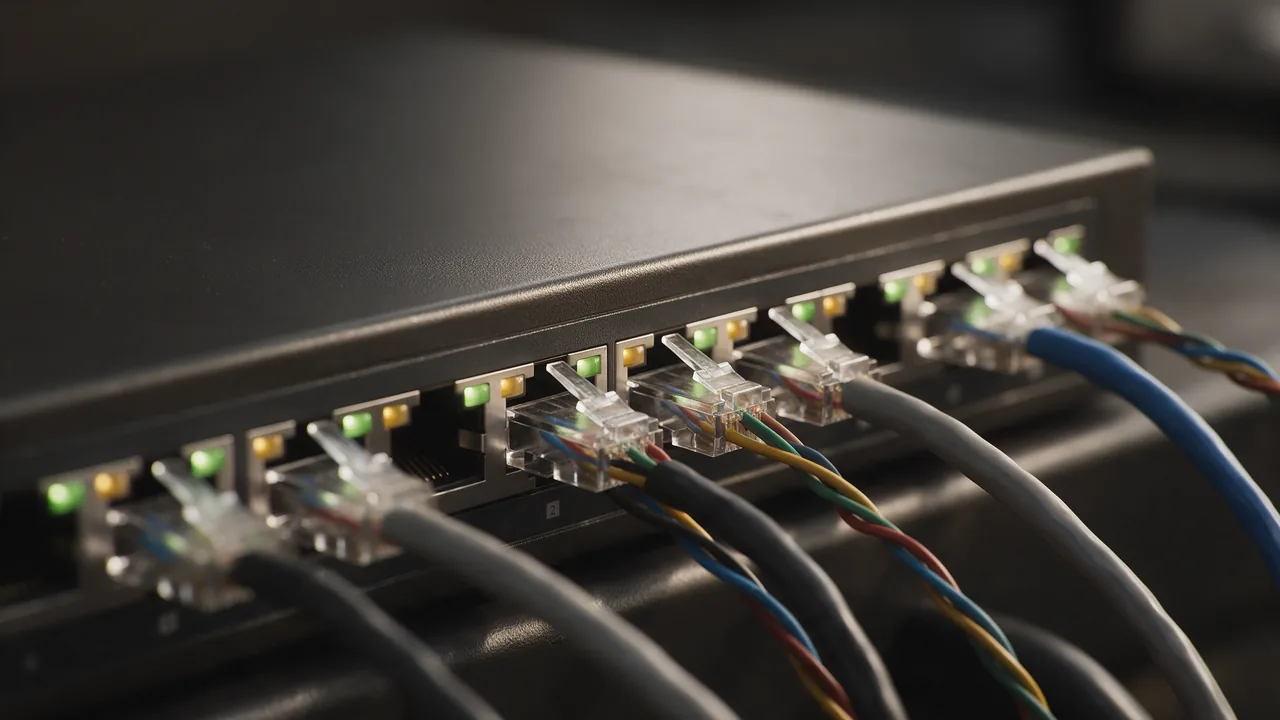
MTU (Maximum Transmission Unit) is the maximum packet size that can be sent without fragmentation. Ethernet standard is 1500 bytes, PPPoE is 1492, VPN is usually 1400-1500. Wrong MTU leads to slow loads and timeouts. Debug with: ping -f -l <size> host.
Free online tool — ping & port checker: instant results, no signup.
Check MTU online
Understanding MTU in Different Networking Protocols
The Maximum Transmission Unit (MTU) varies across different networking protocols, affecting how data is transmitted over a network. It's crucial to understand these differences to optimize network performance.
1. Ethernet: The most common MTU size for Ethernet networks is 1500 bytes. This size is widely used in local area networks (LANs) and is the default for most network interfaces. However, this can be adjusted in certain situations to improve performance or accommodate specific applications.
2. PPPoE (Point-to-Point Protocol over Ethernet): For PPPoE connections, the typical MTU is 1492 bytes. This reduction is due to the additional overhead of the PPPoE headers, which consume 8 bytes of the MTU.
3. VPN (Virtual Private Network): When using a VPN, the MTU can vary but is often set between 1400 and 1500 bytes. The exact size depends on the VPN protocol being used (e.g., OpenVPN, L2TP, PPTP) and the type of encryption applied, which can add overhead to the packets.
Understanding these variations is essential for configuring network devices correctly, ensuring efficient data transmission, and avoiding fragmentation issues.
How to Test and Troubleshoot MTU Issues
Testing and troubleshooting MTU settings can help identify and resolve connectivity issues within a network. Here are some practical steps and commands to diagnose MTU problems:
- Ping Test: Use the ping command to test the MTU size. The command format is as follows:
ping -f -l <size> <destination>- Replace <size> with the MTU size you want to test (e.g., 1472 for a 1500 MTU) and <destination> with the IP address or hostname of the target device.
If the ping returns successfully, increase the size until you encounter a "Packet needs to be fragmented" message. This indicates that the MTU size is too large for the path.
2. Adjusting MTU Settings: After determining the correct MTU size, you can adjust it on your network devices. For example, on a Windows system, you can change the MTU size using the following command:
netsh interface ipv4 set subinterface "Local Area Connection" mtu=<size> store=persistentReplace "Local Area Connection" with the name of your network interface and <size> with the desired MTU value.
3. Router Configuration: To change the MTU on a router, access the router's web interface, navigate to the WAN or Internet settings, and look for the MTU option. Set it according to the results of your ping test.
By following these steps, you can effectively test and troubleshoot MTU-related issues, ensuring optimal network performance.
Impact of MTU on Network Performance
The Maximum Transmission Unit (MTU) plays a critical role in the overall performance of network communications. Understanding its impact can help you optimize your network for efficiency and speed.
1. Fragmentation: When packets exceed the MTU size, they are fragmented into smaller pieces. This fragmentation can lead to increased latency and overhead, as each fragment must be processed separately. If any fragment is lost, the entire packet must be retransmitted, further degrading performance.
2. Throughput: A mismatched MTU can significantly reduce throughput. For example, if a device is configured with a higher MTU than the path allows, packets may be dropped, leading to retransmissions and lower effective throughput. Conversely, a smaller MTU can lead to more packets being sent, increasing the processing load on devices and potentially bottlenecking performance.
3. Application Performance: Certain applications, particularly those that rely on real-time data transmission (such as VoIP and video conferencing), can be adversely affected by improper MTU settings. High latency from fragmented packets can result in poor audio and video quality.
4. Optimal MTU Configuration: To achieve the best network performance, it is essential to configure the MTU settings correctly on all devices within the network path. Regularly testing and adjusting the MTU can help maintain optimal performance and minimize issues related to packet loss and fragmentation.
In conclusion, MTU is a crucial factor in network performance, and understanding its implications can lead to a more efficient and reliable network environment.
Why teams trust us
How it works
Enter IP or domain
ICMP packets sent
Latency & packet loss shown
How Do Ping and Port Scanning Work?
Ping sends ICMP packets to a host and measures response time. Port scanning checks which TCP ports are open and accepting connections — helping diagnose serviceavailability issues.
Configurable Ping
Choose packet count (3, 4, 6, 10). Stats: min/avg/max latency and packet loss.
Common Port Scanner
Check 14 key ports: HTTP, HTTPS, SSH, FTP, SMTP, MySQL, PostgreSQL, and more.
Cloud-Based Check
Testing from our server — see site availability from outside, not just your local network.
Uptime Monitoring
Need constant monitoring? Create a monitor — checks every minute with notifications.
Who uses this
DevOps
availability diagnosis
Network engineers
TCP port scanning
Developers
connection debugging
SRE
basic health check
Common Mistakes
Best Practices
Get more with a free account
Ping check history, host availability monitoring and downtime alerts.
Sign up freeLearn more
Frequently Asked Questions
Do I need MTU?
See the use-case section above. For a quick check, use our online form.
Try the live tool that powered this guide
Free plan — 10 monitors, checks every 5 min, no card required. Upgrade for 1-minute interval and multi-region monitoring.