"DNS server not responding" means your device asked a DNS server to translate a website name into an IP address and never got a reply. The internet link itself is often fine. Restarting the router, flushing the DNS cache, resetting Winsock and switching to a public resolver such as 1.1.1.1 or 8.8.8.8 fixes most cases.
What "DNS server not responding" actually means
Before a browser can load example.com, it has to look up the site's IP address. It sends that question to a DNS resolver, usually the one your router handed out over DHCP. That is either the router itself (a DNS proxy at 192.168.0.1, 192.168.1.1 or similar) forwarding to your ISP, or the ISP's resolvers directly. The query goes out over UDP port 53, and the operating system waits a few seconds, retries, then gives up.
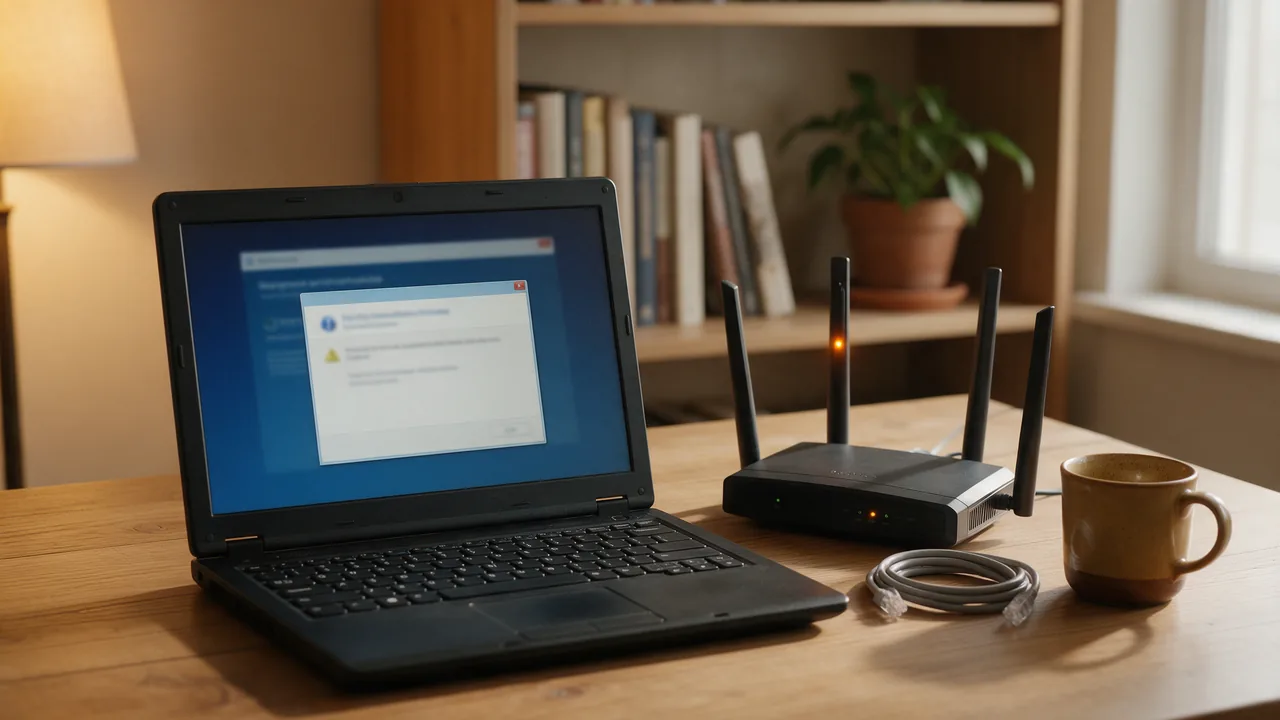
When it gives up, Windows Network Diagnostics reports: "Your computer appears to be correctly configured, but the device or resource (DNS server) is not responding." Read it literally. Your machine has an IP address, a gateway and a subnet mask, so local configuration looks sane, but the name server is silent. A related verdict, "The DNS server isn't responding", describes the same situation.
The key word is silent. A DNS server that answers "this name does not exist" produces a different error, DNS_PROBE_FINISHED_NXDOMAIN, with different causes (covered in how to fix DNS_PROBE_FINISHED_NXDOMAIN). No answer at all almost always points to something between your device and the resolver: the operating system, the router, the ISP or a firewall.
Why the DNS server is not responding: diagnose by symptom
Two observations narrow things down faster than any list of fixes. First: is it one device or every device on this network? Second: does any DNS server answer when you query it directly? The table maps what you see to the most likely cause.
| What you see | Likely cause | First move |
|---|---|---|
No device on the network can open sites, but ping 1.1.1.1 works | The router's DNS proxy has hung, or the ISP's resolvers are down | Reboot the router; set public DNS on the router |
| Only one computer is affected; a phone on the same Wi-Fi works | Local problem: DNS cache, TCP/IP stack, Winsock, a wrong DNS address typed in manually | Flush DNS, reset Winsock and TCP/IP, check adapter DNS settings |
nslookup example.com 1.1.1.1 answers, plain nslookup example.com times out | The resolver your system is assigned to is not working | Set DNS manually to a public resolver |
No resolver answers and ping 1.1.1.1 fails too | No internet connectivity at all: cable, Wi-Fi, ISP outage | Check the connection and router status lights; contact the ISP |
| Ping to public IPs works, yet even 8.8.8.8 gives no DNS answer | Port 53 is blocked by a firewall, security suite or network policy | Temporarily disable the security suite's firewall; review rules |
| Started after installing a VPN client, "network booster" or antivirus | A leftover network filter driver or proxy setting | Uninstall it, reset Winsock, turn off the manual proxy |
| Started after a Windows update or after the laptop woke from sleep | Network adapter driver or adapter power management | Roll back or update the driver; disable power saving for the adapter |
How to fix it on Windows 10 and 11, step by step
The steps go from quick and harmless to more invasive. Test a website after each one and only continue if the problem remains. Run commands in an elevated Command Prompt: press Start, type cmd, right-click Command Prompt and choose "Run as administrator".
1. Restart the router and compare devices
Unplug the router for 30 seconds and power it back on. The built-in DNS proxy on many consumer routers can stop answering while normal traffic keeps flowing, which breaks name resolution for every client at once. If your phone and computer recover after the reboot, the router was the culprit. If nothing works and the router's internet light is off or red, the issue is the ISP link rather than DNS.
2. Flush the DNS cache and renew the lease
ipconfig /flushdns
ipconfig /release
ipconfig /renew
The first command clears the resolver cache, including cached failures. The other two drop and re-request the IP lease, which also refreshes the list of DNS servers the router hands out. Skip /release and /renew if you use a static address. The PowerShell equivalent of the flush is Clear-DnsClientCache. Every switch is documented in Microsoft's ipconfig reference. Commands for macOS, Linux and each browser are collected in how to flush the DNS cache.
3. Reset Winsock and TCP/IP
Security suites, VPN clients and "optimizer" utilities install layered network filters. When they are removed badly, lookups can fail silently. Reset the stack:
netsh winsock reset
netsh int ip reset
Restart the computer afterwards; the reset does not take effect until you do. Note that netsh int ip reset wipes manually configured IP settings, so write them down first if you use static addressing. Windows 10 and 11 also offer a one-click Network reset (Windows 11: Settings → Network & internet → Advanced network settings → Network reset; Windows 10: Settings → Network & Internet → Status → Network reset). It reinstalls network adapters too, so you will need to re-enter saved Wi-Fi passwords.
4. Make sure the DNS Client service is running
Open services.msc and find "DNS Client" (service name Dnscache). It should show as Running. On current Windows versions its startup type is locked in the console by design. From the command line:
sc query dnscacheIf it is stopped and refuses to start, a "cleanup" or tweaking tool has usually disabled it. The default is Start = 2 under HKLM\SYSTEM\CurrentControlSet\Services\Dnscache. Create a restore point before editing the registry, then reboot.
5. Set DNS servers manually
This is the most effective fix when the ISP's or router's resolver is unreliable. Press Win+R, run ncpa.cpl, open the properties of the active adapter, select "Internet Protocol Version 4 (TCP/IPv4)" → Properties → "Use the following DNS server addresses". In Windows 11 you can also go to Settings → Network & internet → your connection → Hardware properties → DNS server assignment → Edit. Widely used public resolvers:
- Cloudflare: 1.1.1.1 and 1.0.0.1
- Google Public DNS: 8.8.8.8 and 8.8.4.4
- Quad9: 9.9.9.9 and 149.112.112.112
Pick your preferred and alternate servers from different operators, for example 1.1.1.1 and 8.8.8.8, so a single provider's incident does not take you offline. The trade-offs in speed, privacy and filtering are compared in the best public DNS servers, and step-by-step screens for macOS, Linux, Android and iOS are in how to change your DNS server. In PowerShell (find the adapter name with Get-NetAdapter):
Set-DnsClientServerAddress -InterfaceAlias "Wi-Fi" -ServerAddresses ("1.1.1.1","8.8.8.8")If the DNS fields already contained addresses you never entered, treat that as a warning sign: some malware changes DNS settings. Replace them and run a full antivirus scan.
6. Update or roll back the network driver
Open Device Manager (devmgmt.msc) → Network adapters. If the error appeared right after a Windows update, open the adapter's properties and use Roll Back Driver on the Driver tab. If the driver is old, get the current one from the laptop or adapter manufacturer. For laptops that lose DNS after sleep, clear "Allow the computer to turn off this device to save power" on the Power Management tab.
7. Check the firewall, security suite and proxy
A third-party firewall can block outbound port 53 or route queries through its own filter. Temporarily disable web protection and the firewall component, then test again. If sites load, add an exception or reinstall the product rather than leaving protection off. Also open Settings → Network & internet → Proxy: a manual proxy pointing at software you uninstalled long ago breaks page loads in a very similar way.
8. When nothing works
Connect the computer to a different network, such as a phone hotspot. If everything works there, the fault is in your router or with your ISP: set DNS on the router and contact the ISP with the test results from the section below. If DNS fails on every network, the problem is inside Windows, and a restore point is the next reasonable step.
macOS, Linux, phones and routers
macOS
Flush the cache in Terminal with sudo dscacheutil -flushcache; sudo killall -HUP mDNSResponder. DNS servers are set in System Settings → Network → your connection → Details → DNS. Remove any entries you do not recognise and add a public resolver.
Linux
On distributions using systemd-resolved, resolvectl status shows which servers each interface uses and resolvectl flush-caches clears the cache. Test a specific server with dig @1.1.1.1 example.com. The message connection timed out; no servers could be reached is the Linux counterpart of the Windows error.
Android and iPhone
On Android, check Settings → Network & internet → Private DNS (the exact path varies by manufacturer). If it names a hostname that cannot be reached, the phone fails to resolve anything on any network. Choose Automatic or a working hostname such as one.one.one.one or dns.google. On iPhone, DNS for a Wi-Fi network is under Settings → Wi-Fi → the "i" icon → Configure DNS.
Router
If every device is affected after a reboot, enter public DNS servers in the router's WAN (internet connection) or DHCP settings, depending on the model. All clients then pick them up automatically on their next lease renewal.
How to check whether a DNS server is responding
nslookup ships with Windows, macOS and most Linux distributions and lets you query a chosen server directly, bypassing adapter settings. Compare two queries:
nslookup example.com
nslookup example.com 1.1.1.1- Both return addresses: DNS works. Look at the browser, proxy or the website itself.
- The first ends with
DNS request timed out, the second answers: your assigned resolver is the problem. Apply step 5 or change DNS on the router. - Neither answers: run
ping 1.1.1.1. If ping succeeds, something is blocking port 53 (step 7). If it fails, you have no connectivity at all.
To see which resolver your system is using, look at the "DNS Servers" line in ipconfig /all or run Get-DnsClientServerAddress. The nslookup guide explains the output line by line, and the syntax is in Microsoft's nslookup reference.
If you run a website and visitors report it will not load, check the domain from outside your own network. DNS Lookup queries the domain's records and shows whether its authoritative name servers answer. The DNS propagation check asks public resolvers in many countries at once: if the domain resolves everywhere except on your machine, the fault is local. Ping confirms that the server behind the resolved IP is reachable.
How it differs from other DNS errors
| Message | What happened | Where to look |
|---|---|---|
| "DNS server isn't responding", "device or resource (DNS server) is not responding" | No reply from the resolver at all | Device, router, ISP, firewall |
DNS_PROBE_FINISHED_NXDOMAIN | The resolver replied that the name does not exist | Typo, expired or undelegated domain, stale cache |
DNS_PROBE_FINISHED_NO_INTERNET | The device has no network connection | Cable, Wi-Fi, adapter |
ERR_NAME_NOT_RESOLVED | The name could not be resolved for any of the reasons above | Use nslookup to find out whether any reply came back |
FAQ
Is this error a sign of hacking?
Not by itself. It is a name-resolution failure. Be concerned only if you find DNS addresses in your adapter or router settings that you did not configure.
Why do some apps work while websites don't?
Some apps keep existing connections open or reach servers they already resolved, so they carry on for a while. A browser needs a fresh lookup for most sites it opens, so it fails first.
Which DNS servers should I use to prevent it?
A pair from different operators, such as 1.1.1.1 and 8.8.8.8. If one has an incident, Windows falls back to the alternate server.
Does ipconfig /flushdns fix it on its own?
Only when a corrupted cache is the cause. If the assigned resolver is down, flushing changes nothing; switch resolvers or reboot the router instead.
Does the same fix work on Windows 7?
Yes: ipconfig /flushdns, netsh winsock reset, netsh int ip reset and manual DNS in the adapter properties. Windows 7 has no Network reset button, so these commands replace it.