A synthetic login check should submit credentials, confirm the account view, add a test item and assert the cart count. Run it with a dedicated test identity. A successful page load says little about whether a customer can sign in.

A storefront can serve its home page while customers cannot enter their accounts or use the cart. A browser scenario catches that customer-facing failure. We ran the Playwright example below against an isolated local fixture with both a valid and an invalid password, then validated equivalent steps for enterno.io browser synthetics.
What you need
- Node.js, Playwright and a browser. Our local run used Playwright Core 1.58.2 with Chrome.
- A dedicated test account with a stable item that can be added without placing a real order.
- A base URL in
TEST_BASE_URLand a password supplied throughTEST_PASSWORD. - One observable result for each action, such as an account link and a numeric cart counter.
Step 1. Define the customer path
Start at /login, locate the email and password fields by accessible name, submit the form and wait for the account link. On the account page, add a test item and assert that the cart text shows one item. Each assertion narrows the failure: a loaded login page is only the first state in the flow.
Keep the account separate from real shoppers and reset its cart between runs. If the application has multifactor authentication, use a controlled test identity and a supported test path. Disabling MFA on an ordinary production account would turn a monitoring task into an access risk.
Step 2. Run the Playwright script
The complete scenario.cjs is stored with the draft. Its essential checks are:
const { chromium } = require('playwright-core');
const browser = await chromium.launch({headless: true, executablePath: process.env.CHROME_PATH});
try {
  const page = await browser.newPage();
  await page.goto(process.env.TEST_BASE_URL + '/login');
  await page.getByLabel('Email').fill('probe@example.test');
  await page.getByLabel('Password').fill(process.env.TEST_PASSWORD);
  await page.getByRole('button', {name:'Sign in'}).click();
  await page.getByRole('heading', {name:'Account ready'}).waitFor();
  await page.getByRole('button', {name:'Add test item'}).click();
  await page.getByText('Cart: 1 item').waitFor();
} finally { await browser.close(); }
These labels belong to the local fixture; replace them with those on your site. Role and label locators are usually easier to maintain than long CSS class chains. Assert the account view after submitting the form; status 200 on the login URL does not establish that authentication succeeded. Close the browser even when a check fails in your production script, for example with try/finally.
Step 3. Prove failure detection
Our local fixture produced exit code 0 and PASS login and cart with the correct password. With a wrong password, the account link never appeared and the run ended with exit code 1. This negative case confirms that the script detects a broken sign-in rather than merely starting a browser.
TEST_BASE_URL=http://127.0.0.1:PORT TEST_PASSWORD=correct node scenario.cjs
# PASS login and cart; exit 0
TEST_BASE_URL=http://127.0.0.1:PORT TEST_PASSWORD=wrong node scenario.cjs
# assertion failed; exit 1
Supply secrets from your CI secret store, never from committed config. Screenshots may contain user details; capture them only on failure and apply a retention limit. Avoid putting credentials into a query string, where they can reach browser history and request logs.
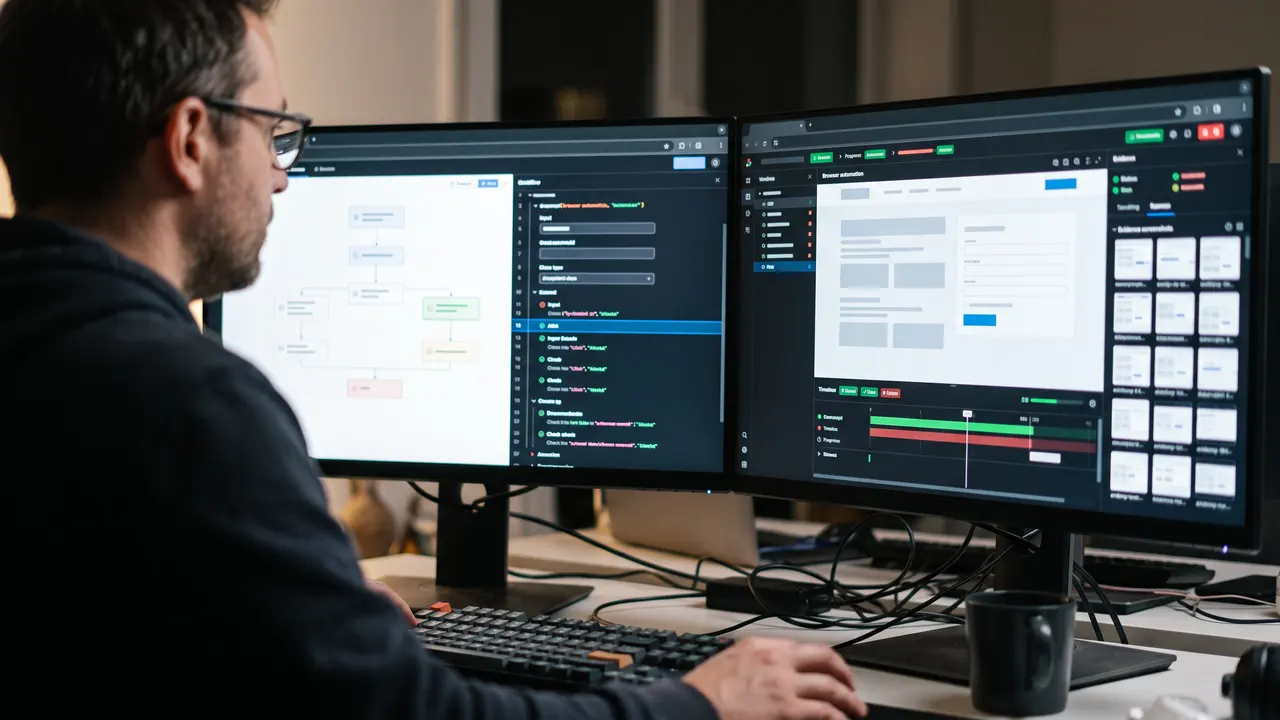
Assert the user outcome after each action
The browser monitor in enterno.io Synthetics uses its own JSON step format. It does not import a Playwright file. An equivalent sequence can use goto, fill, click, expect_visible and expect_text. We passed a five-step example through the native validator: it returned ok: true, no errors and steps: 5. That validates syntax only; it does not claim a customer monitor ran in production.
Map the selectors to your actual page and keep checkout separate. A purchase flow needs a sandbox and a server-side order assertion, covered in the checkout monitoring guide. Choose a run interval, timeout and alert policy that fit the service. A one-hour interval can miss a short outage; excessive frequency can consume test account capacity.
Diagnose a failing step
| Symptom | Likely cause | Check |
|---|---|---|
| Page loads, script fails | Form or selector changed | Inspect the accessible field name and failure screenshot |
| Login works, cart count stays empty | Cart API or test item failed | Check network responses and item availability |
| Wrong password still passes | No post-login assertion | Wait for an account-only element |
| Intermittent failures | Test data leaks between runs | Reset the account cart before each run |
A browser scenario identifies the customer symptom. Pair it with API checks, TLS checks and a basic uptime monitor to narrow the cause. Alert details should contain the failing step and timestamp, never the password.
Run in CI without contaminating test data
Give every run an identifier and write it to the test log. If adding the test item reserves stock, remove it from the cart after the run, including after a failure. Put cleanup in a finally block or a dedicated API operation. Manual cleanup will eventually leave stale data and make alerts unreliable.
Store credentials in CI secrets and grant the test user minimal permissions. It should not see real orders or change shop settings. For checks from several regions, use separate identities: parallel sessions on one account may log each other out. That creates failures caused by monitoring itself. Give every identity an owner and a password rotation schedule.
Bound total execution time. Short waits for specific elements are easier to diagnose than a single one-minute timeout. Record each step duration. A login page may still load quickly while the account view grows slower; that can be an early degradation signal. Confirm the pattern across several runs and inspect network context before paging on one slow sample.
Log the fixture URL, UTC time, step name and exit code, but redact account identifiers if they map to employees. Keep browser traces only for a limited period. Before placing a screenshot into a ticket, check for session tokens, personal data and internal URLs. Incident evidence can leak more than the original test if it is shared without review.
Separate a broken test from a broken product
A button label change can break a locator while login still works. Review the scenario with every interface change. If one selector fails, inspect the screenshot and accessible name. If the authentication request fails, inspect the application and its dependencies. If Chrome never starts, check the container image, permissions and browser version before assigning an application incident.
To test that the check cannot pass falsely, use a wrong password on the local fixture and confirm it fails while waiting for the account heading. Then make the test item unavailable and confirm that the cart assertion fails. Perform these fault tests on a local or staging fixture, never a real shop. Record the expected failing step in the runbook so an on-call engineer can distinguish a stale test from a customer outage.
How we made this
On 14 November 2026 we ran the script against a local HTTP fixture with artificial login and catalog pages. We retained the script, positive and negative results, and native step-validator output. No customer account, production order or real payment was involved. Playwright behavior was checked against its official documentation; each site must verify its own selectors and limits.
FAQ
Can I upload a Playwright script to enterno.io?
No. Browser synthetics use a native sequence of steps. Translate the actions and assertions into the monitor editor, and keep the Playwright file for CI if useful.
Is checking the login URL enough?
No. A login page can respond with 200 while the form fails. Assert a state available only after successful authentication.
How do I reduce false alarms?
Use stable test data, assert a specific outcome and set a realistic timeout. Retain failure screenshots for a limited period and record the failing step.