In short. A complete website backup covers application code and user uploads, a consistent database dump, web server and PHP configuration, cron jobs and timers, TLS certificates, and environment variables. Keep at least three copies across two locations, one of them off the server. RPO and RTO define the frequency. A backup you have never restored to a test host is not a backup yet.
What a complete website backup includes, and why a public_html archive is not one
A backup must let you bring up a working site on an empty server, not just recover a deleted image. If all you have after an outage is public_html.tar.gz, recovery turns into hours of reconstruction from memory: which PHP version was running, which extensions were enabled, what was in the rewrite rules, which jobs sat in crontab, where the certificate private key lived.
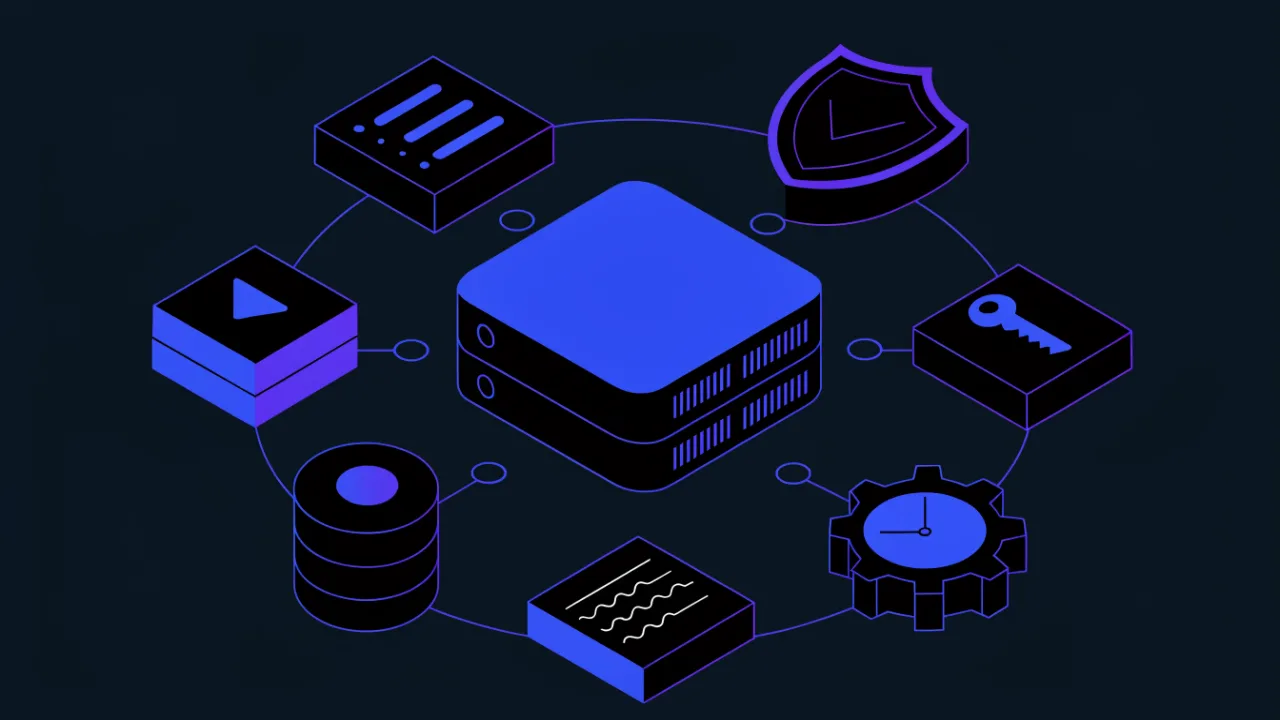
The minimum contents of a full backup:
- Application code — CMS core, themes, modules, custom code. If the code lives in Git, backing it up means the repository plus a recorded production commit.
- User uploads —
wp-content/uploads, media and document directories. This is usually the largest and the only genuinely irreplaceable part: code can be reinstalled, product photography cannot. - The database — a consistent dump, not a live copy of data files.
- Web server and PHP configuration —
/etc/nginx, Apache virtual hosts,/etc/php/*/fpm/pool.d, limits, timeouts, caching rules. - Scheduled jobs — user crontabs, files in
/etc/cron.d, systemd units and timers. Without them the site boots, but mail stops going out, feeds stop refreshing, and caches stop being cleaned. - Certificates and keys — the whole
/etc/letsencrypttree includingaccountsandrenewal, private keys, DH parameters. - Environment variables and secrets —
.envfiles, database credentials, payment gateway keys, API tokens. They are normally excluded from the repository, and the application will not start without them. - Mail and host metadata — relay configuration and mailboxes if they live on the same host, plus package lists and versions so the environment can be reproduced.
Never store backup archives inside the web root. Files namedbackup.zip,dump.sqlorsite_2026.tar.gzin the site root get indexed, brute-forced by dictionary scanners, and leak in full — together with the entire user database. The backup directory belongs outsideDocumentRoot, with restrictive permissions.
The 3-2-1 rule: why a copy on the same server does not count
The classic rule: three copies of the data, on two different media or platforms, one of them outside the primary infrastructure. Production data counts as the first copy.
A copy sitting on the same server in a neighbouring directory protects against none of the realistic loss scenarios:
- disk failure or degradation — data and archive disappear together;
- a mistaken delete command or a bad deploy that wipes the directory;
- host compromise: ransomware looks for local backup directories first;
- losing access to the provider account — the server and its snapshots become unreachable at the same moment;
- a billing mistake that stops the virtual machine along with its disks.
The extended version of the rule adds two conditions: one copy must be immutable or offline, and restore verification must complete with zero errors. In practice, immutability is implemented with an object storage key that can write and read but cannot delete. Pruning old copies runs as a separate job with a different key and, ideally, from a different machine.
An honesty check. Imagine the production server is completely unreachable right now: the provider has suspended the account and the control panel is gone. Can you still retrieve a backup? If the answer is no, you are not running 3-2-1.
RPO and RTO in plain words, and how they set your backup frequency
RPO (recovery point objective) is how much data you are willing to lose — the distance between the last backup and the moment of failure. If backups run daily at 03:20 and the site dies at 18:00, you have lost nearly 15 hours of work: orders, comments, uploaded files.
RTO (recovery time objective) is how long the business can be down. It includes everything: detecting the failure, locating the last good copy, downloading the archive, rebuilding the environment, importing the database, switching DNS, and warming caches.
Frequency follows directly from RPO: the interval between copies must not exceed the acceptable loss. RTO drives the technology choice — if you need to be back in 30 minutes, downloading a 200 GB archive over a thin link will not work; you need either a warm standby or storage close to the server plus a separate remote copy.
| Project type | Sensible RPO | Sensible RTO | Scheme |
|---|---|---|---|
| Brochure site, landing page | 24 hours | 4–8 hours | Daily full backup of files and database |
| Corporate site with forms | 6–12 hours | 2–4 hours | Files daily, database every 6 hours |
| Blog, media, user-generated content | 1–3 hours | 1–2 hours | Incremental file backup, frequent database dumps |
| Online store with payments | 5–15 minutes | under 1 hour | Full dump plus continuous transaction log archiving |
The numbers above are a starting point for the conversation with the site owner, not a standard. The correct order is the reverse: the business states the acceptable loss and downtime first, and the scheme and budget follow.
Backup types: full, incremental, differential, and disk snapshots
Full — everything is copied. Simple to restore (exactly one archive is needed), expensive to store, slow to take.
Incremental — only changes since the previous copy of any type. Cheap in space and time, but restoring requires the whole chain: the full backup plus every increment in order. A break in the middle invalidates everything after it.
Differential — changes since the last full backup. It takes more space than incremental, but a restore needs only two pieces: the full backup and the latest differential.
Modern deduplicating tools such as restic and borg blur the distinction: physically they write only new blocks, but logically every snapshot looks full and restores independently. For websites this is almost always the best trade-off.
A provider disk snapshot is not a backup
Snapshots are convenient: they take seconds and let you roll the whole machine back. They have three fundamental limitations.
- They live in the same infrastructure and the same account as the server. Lose access to the account, or hit a platform-side failure, and the snapshots go with the machine.
- They do not guarantee database consistency. A snapshot is taken at the block device level and freezes database files at an arbitrary instant — possibly mid-page-write. The restored database may come up only after crash recovery, or may not come up at all.
- Extracting a single file is awkward. To recover one accidentally deleted page you have to spin up the entire machine.
A snapshot is an excellent rollback point before a CMS upgrade or a migration. As the only line of data defence it is not enough. Where snapshots genuinely fit is covered in the website migration checklist.
Consistent database backups: mysqldump and the alternatives
The most common mistake is copying the database data directory (/var/lib/mysql) with plain rsync or tar while the server is running. During the copy the engine keeps writing: some pages land in the archive in their old state, some in the new one, and the redo log no longer matches the table files. The result is an archive that either refuses to start or starts with missing rows — and you find out during the outage.
For InnoDB, a correct logical dump is taken inside a single transaction: the server hands out a consistent snapshot as of the dump start without blocking writes.
mysqldump   --defaults-extra-file=/root/.my.cnf   --single-transaction   --quick   --routines --events --triggers   --hex-blob   --no-tablespaces   --default-character-set=utf8mb4   --databases sitedb   | gzip -9 > /var/backups/site/db/sitedb-$(date +%F-%H%M).sql.gz

# exit codes of every stage of the pipeline, not just the last one
echo "${PIPESTATUS[@]}"

# integrity check of the logical dump
zcat /var/backups/site/db/sitedb-*.sql.gz | tail -3 | grep -q 'Dump completed'   || echo 'BROKEN DUMP'
What the key flags do:
--single-transaction— a consistent InnoDB snapshot without table locks. It does nothing for MyISAM, where you have to fall back to--lock-all-tablesand accept a write pause.--quick— row-by-row streaming instead of buffering whole tables in memory. Mandatory for large tables.--routines --events --triggers— stored procedures, scheduled events and triggers. Without them the database restores logically empty.--hex-blob— binary columns as hexadecimal, so they survive transfers between character sets.--no-tablespaces— required on modern MySQL when the dump user lacks the PROCESS privilege.--defaults-extra-file— the password is read from a file with mode 600 instead of the command line, where it is visible in the process list.
Important.--single-transactiononly guarantees consistency in the absence of DDL. If anALTER TABLEruns during the dump, or a CMS module upgrade changes the schema, the snapshot silently stops being consistent — with no error. Schedule backups for a window without upgrades, and never run a deploy in parallel with one.
The PostgreSQL equivalent is pg_dump -Fc — a compressed custom format restored by pg_restore with parallelism. For databases in the tens of gigabytes, a logical dump takes too long to restore; that is where physical backups take over (hot copy utilities for MySQL, pg_basebackup plus WAL archiving for PostgreSQL). Physical backups restore faster and allow point-in-time recovery, but they are tied to the database version and platform. A reasonable middle ground for an average site: a daily logical dump plus continuous log archiving if the RPO is under an hour.
Encrypting backups and keeping the key somewhere else
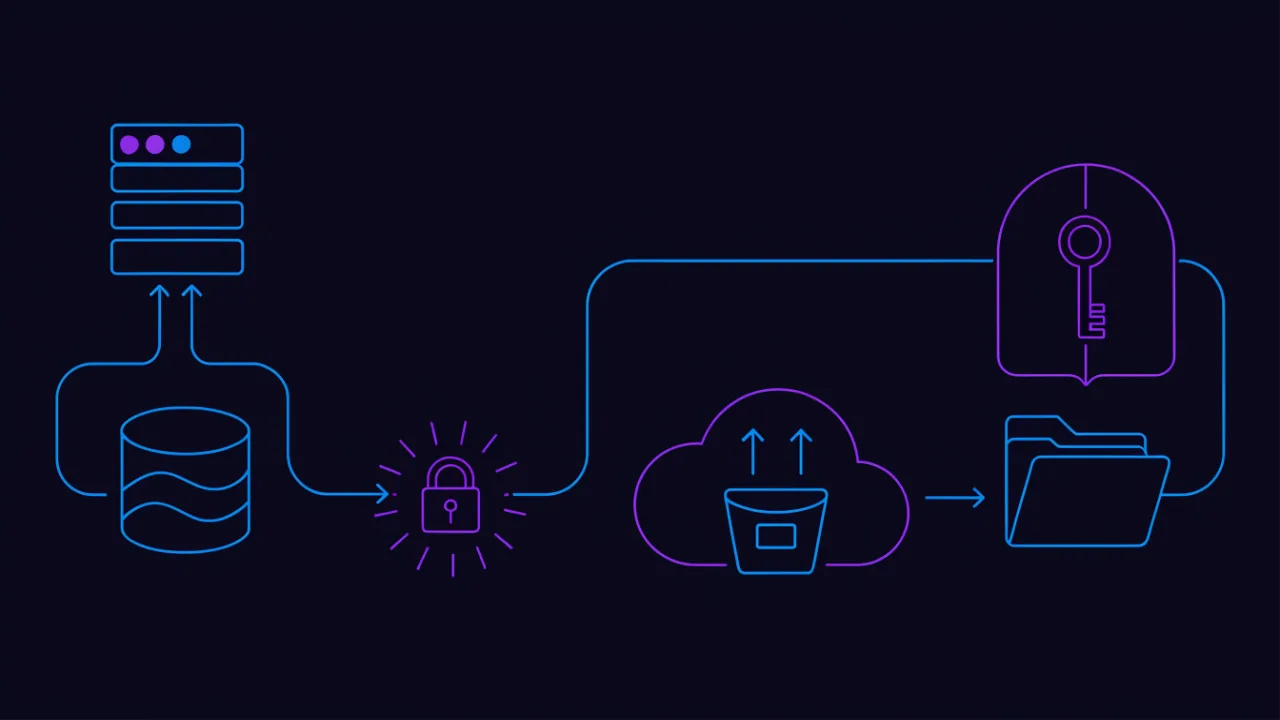
A site database dump is personal data in its rawest form: names, phone numbers, delivery addresses, password hashes, order history, support messages. Leaking one archive equals leaking the entire customer base for the lifetime of the project. So backups are encrypted before they leave the server.
Tools like restic and borg do this by default: the repository is encrypted as a whole and the storage backend only ever sees ciphertext. If you assemble archives by hand, encrypt them symmetrically or to a public key before upload.
Where the key goes
The key or passphrase must not live only on the server you are backing up. Otherwise the scheme degenerates: compromising the server also hands over the archives, and losing the server means losing the key and the ability to decrypt anything.
- working copy of the key — on the server, mode 600, owned by root;
- second copy — in a secrets manager or the team password vault;
- third copy — offline: a printout or an encrypted drive in a safe.
A key stored next to the encrypted archive is the same as no encryption. That includes environment variables inside the same container and passwords hardcoded in the very script that ends up in the backup.
The compliance angle
A backup containing personal data is still processing of personal data. Practically, that means backups need a defined and documented retention period, they must appear in your inventory of storage locations, and an erasure request must either reach the backups or be covered by a rotation policy with a clearly stated window. Under GDPR, encryption of stored data is an explicitly named security measure, and the right to erasure does not stop at the production database. Keeping copies forever "just in case" creates risk without producing value.
A working setup: script, timer, object storage, retention
Below is the skeleton of a script that does the three things homegrown backups almost always miss: it stops on the first error, it sanity-checks the result, and it reports about itself to the outside world.
#!/bin/bash
# /usr/local/sbin/site-backup.sh
set -Eeuo pipefail

TS=$(date +%F-%H%M)
WORK=/var/backups/site
DUMP="$WORK/db/sitedb-$TS.sql.gz"
MIN_BYTES=$((20 * 1024 * 1024))     # "suspiciously small dump" threshold
ALERT_URL="https://alerts.example.com/hook"
PING_URL="https://monitor.example.com/ping/site-backup"

notify() {
  logger -t site-backup "$1"
  curl -fsS -m 10 --data-urlencode "text=site-backup: $1" "$ALERT_URL" >/dev/null || true
}
trap 'notify "FAILED at line $LINENO"' ERR

install -d -m 700 "$WORK/db"

mysqldump --defaults-extra-file=/root/.my.cnf --single-transaction --quick   --routines --events --triggers --hex-blob --no-tablespaces   --databases sitedb | gzip -9 > "$DUMP"
[ "${PIPESTATUS[0]}" -eq 0 ] || { notify "mysqldump failed"; exit 1; }

SIZE=$(stat -c %s "$DUMP")
if [ "$SIZE" -lt "$MIN_BYTES" ]; then
  notify "dump suspiciously small: $SIZE bytes"
  exit 1
fi

export RESTIC_REPOSITORY="s3:https://s3.example.com/backups-site"
export RESTIC_PASSWORD_FILE=/root/.restic-pass

restic backup --tag daily --one-file-system   "$WORK/db" /var/www/site /etc/nginx /etc/php /etc/letsencrypt /etc/cron.d

restic forget --tag daily --prune   --keep-daily 14 --keep-weekly 8 --keep-monthly 12

curl -fsS -m 10 "$PING_URL" >/dev/null || true
notify "OK, dump $SIZE bytes"
The details that matter: set -Eeuo pipefail together with trap ... ERR turns any unhandled failure into an alert rather than a silently skipped night. The minimum-size check catches the nastiest failure class — mysqldump exiting zero while dumping an empty database after a password or privilege change. The final curl is a heartbeat: an external system waits for that signal and raises an alarm when it does not arrive.
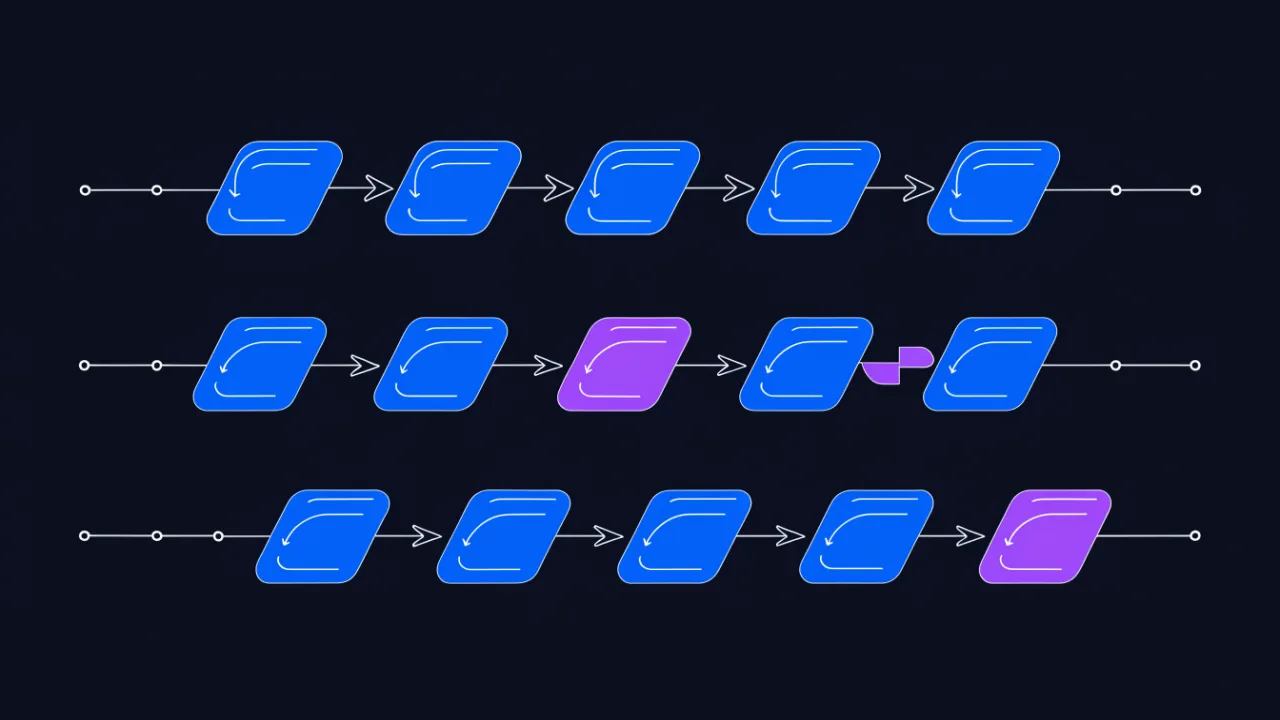
Scheduling with plain cron. Note the output redirection — without it, errors go to root's mailbox, which nobody reads.
# /etc/cron.d/site-backup
SHELL=/bin/bash
PATH=/usr/local/sbin:/usr/local/bin:/usr/sbin:/usr/bin:/sbin:/bin

20 3 * * * root /usr/local/sbin/site-backup.sh >> /var/log/site-backup.log 2>&1
On a systemd host it is more robust to use a unit pair. The site-backup.service file needs only Type=oneshot and ExecStart, while site-backup.timer carries the schedule in an OnCalendar directive with a value such as *-*-* 03:20:00. Add RandomizedDelaySec=900 so a fleet of servers does not start uploading in the same second, and Persistent=true so a run missed while the host was off still happens after boot. The advantages over cron are journald logging, a queryable status of the last run, and correct handling of overlapping executions.
# /etc/systemd/system/site-backup.service
[Unit]
Description=Site backup
After=network-online.target mysql.service

[Service]
Type=oneshot
Nice=10
IOSchedulingClass=idle
ExecStart=/usr/local/sbin/site-backup.sh
Retention is a trade-off between cost and depth. A workable starting point for a website: 14 daily, 8 weekly, and 12 monthly copies. Daily copies cover everyday mistakes, weekly ones cover mistakes noticed late, and monthly ones cover infections and data corruption discovered months later.
What to copy with what: reference table
| Object | Tool | Frequency | Destination | How to verify |
|---|---|---|---|---|
| Application code | Git repository, restic/borg over the directory | Every release plus daily | Remote repository plus object storage | Check out the tag and compare file checksums |
| User uploads and media | rsync, restic, borg | Daily; more often on active sites | Object storage plus a second location | Compare file count and total size against production |
| Database | mysqldump / pg_dump; physical backup for large sets | Daily to continuous log archiving | Local for a short window, then remote storage | Import into a test database, compare row counts |
| nginx/Apache and PHP configuration | Config repository or restic over /etc | On every change plus weekly | Repository plus object storage | nginx -t and php-fpm -t on the restored copy |
| cron jobs and systemd timers | crontab -l export, copy of /etc/cron.d and units | On change plus weekly | Together with the configs | Diff the job list against production |
| Certificates and private keys | Archive of /etc/letsencrypt, always encrypted | Daily (renewal is automatic) | Encrypted storage only | Check expiry and that the key matches the certificate |
| Environment variables and secrets | Encrypted file or a secrets manager | On every change | Secrets manager plus offline copy | Boot the application from the restored copy |
| Mail on the host | Mailbox directory archive plus relay config | Daily | Remote storage | Open a restored mailbox and send a test message |
| DNS zone | Zone export from the DNS provider | On change | Config repository | Compare records with live resolver answers |
CMS-side backups: WordPress and other platforms
Built-in and plugin-based solutions are convenient because they need no server access. But they run inside a PHP process and inherit every one of its limits.
WordPress
Backup plugins build the archive and the dump using PHP itself. Typical failures: hitting max_execution_time and memory_limit on large uploads trees; a partial archive produced with no error reported; archives dropped into wp-content, where they can be downloaded by guessing the filename; and, above all, the fact that when the site is down the admin panel is down too — and with it the restore mechanism.
A more predictable route is WP-CLI on the server: wp db export for the dump and wp core verify-checksums to validate core integrity before taking a copy. Even that is a supplement to a server-side backup, not a replacement.
Enterprise CMS with a built-in backup module
Platforms that ship their own backup module usually split the archive into parts and run steps on a schedule. On large projects they routinely hit the maximum archive size, the per-step time limit, or free disk space. Such modules often write into a directory inside the web root, so access to it must be blocked at the web server level. A separate recurring problem is a heavy uploads directory that either gets excluded from the archive — leaving the backup incomplete — or turns the job into a multi-hour task with an unpredictable outcome.
Rule of thumb. A backup that runs inside the application will not survive a failure of that application. A server-side backup at the filesystem and database level keeps working even when the site returns 500 or the database is in recovery. CMS tooling is a pleasant convenience for rolling back a plugin update, not the foundation of data protection.
Restore testing: the step almost nobody performs
A successfully finished backup job only proves that the job finished. It does not prove that the archive is complete, that the dump is readable, that the encryption key still fits, or that you remember the sequence of steps. The only check that proves those things is an actual restore.
A routine that actually gets done: once a month, restore the latest copy to an isolated environment — a test subdomain, a spare virtual machine, or a local stack. Measure the real elapsed time; that number is your true RTO, not the one written in the document.
# 1. see what the repository holds
restic snapshots --tag daily --latest 3

# 2. restore the latest snapshot into a separate directory
restic restore latest --target /srv/restore-test

# 3. bring the database up in an isolated instance and import the dump
mysql -h 127.0.0.1 -e "CREATE DATABASE restore_test CHARACTER SET utf8mb4;"
zcat /srv/restore-test/var/backups/site/db/sitedb-*.sql.gz   | mysql -h 127.0.0.1 restore_test

# 4. compare data volume with production
mysql -h 127.0.0.1 restore_test -e   "SELECT COUNT(*) FROM orders; SELECT MAX(created_at) FROM orders;"

# 5. periodically re-read part of the repository data end to end
restic check --read-data-subset=5%
Acceptance checklist for a restored copy:
- the archive unpacks and decrypts with the key you have on hand;
- the dump imports without errors and contains every table, including routines and triggers;
- row counts and latest timestamps in key tables match expectations;
- the site answers with 200, returns correct headers, and does not flood the error log;
- media files are present: sample images from different years open correctly;
- admin login, form submission, and checkout all work;
- external integrations pick up the restored keys from the environment;
- the actual time from start to a working site has been recorded.
Monitoring the backup job itself
Three signals worth tracking, and all three are different:
- The job did not run. A missing success cannot be detected by a log on the server, because the server may be dead. It is detected by an external system waiting for a signal and alerting when it fails to arrive within the window. That is the classic heartbeat, or dead man's switch — the setup is covered in the guide to heartbeat monitoring for cron jobs.
- The backup is suspiciously small. Compare the size with the median of recent runs and alert when it drops by more than 30–40%. This catches a changed database password, a directory excluded by mistake, and a truncated dump.
- The backup does not change. If the dump checksum is identical two days running, an old file is most likely being copied instead of a fresh one. General approaches to supervising background jobs are collected in the piece on cron job monitoring.

After a compromise: why a fresh backup may already contain a backdoor
An automated backup faithfully copies whatever is on disk — including the web shell uploaded three weeks ago. If your retention depth is shorter than the attacker's dwell time, you have no clean copies at all: the restore brings the site back together with the implant, and a day later it repeats.
The practical conclusions:
- Keep depth. A 14 daily plus 8 weekly plus 12 monthly scheme gives you a chance of finding a copy older than the compromise. Keeping only the last seven days is the classic reason there is nothing to roll back to after a breach.
- Establish the compromise date first. Web server logs, file modification times, payment history, and database records give you the reference point. Only then pick a copy — deliberately an earlier one.
- Do not restore on top. The correct order is a clean install of the CMS core from the official distribution, then migrating only the data: the database and user uploads, with the uploads scanned for executable files.
- An old backup carries old vulnerabilities. A month-old copy contains the unpatched code the attacker walked in through. Patching and rotating every password and key must happen before the site goes back online.
- Isolate copies from the compromised host. A storage key sitting on a breached server lets the attacker delete the archives — which is exactly why the key should have no delete permission.
The full post-breach sequence is covered in what to do if your website was hacked and the incident response plan. Scanning the site before and after the restore is covered in the website malware check guide and the malware scanner.
How to verify
A restore is finished not when the site opens in your browser, but when it answers correctly from the outside. Checks worth running against both the restored copy and production:
- HTTP header check — confirm the restored copy returns the right status code, charset, caching and security headers. Headers defined in a config file that never made it into the backup are a common casualty of restores.
- Page speed test — compare response time with the pre-incident baseline. A sharp regression usually means the cache was not warmed, compression settings were lost, or the database came up without indexes.
- Uptime monitoring — so you learn about production downtime before your customers do and start the restore within the RTO you promised.
- Heartbeat for the backup job — an external signal sent after a successful run, where the absence of the signal is itself the alert.
- SSL certificate check — after restoring on a new host, confirm the chain is complete and automatic renewal works again.
Frequently asked questions
How often should a website be backed up?
No more often than your bandwidth and load allow, and no less often than your RPO permits. Daily is enough for a brochure site. For a store taking online payments, a daily backup means losing a day of orders — there you want a daily full backup plus continuous transaction log archiving.
Are the hosting provider's backups enough?
Not as your only protection. Provider copies usually live in the same infrastructure, have shallow retention, rarely cover configuration and environment variables, and the terms under which they are offered can change. Treat them as a convenient supplement, not a substitute: one independent copy under your own control is required either way.
Why are restic and borg better than a scheduled tar?
Deduplication, client-side encryption, and atomic snapshots. Each snapshot restores independently while only new blocks are physically stored, so a year of depth costs little more than a week. With plain scheduled archives you quickly face a choice between volume and depth.
How can I verify a backup without restoring the whole site?
A quick check takes three steps: decrypt and unpack the archive, confirm the logical dump ends with its completion marker, and import it into an empty test database. That catches most failure modes in minutes. It does not replace a monthly full restore, which is the only thing that tests the configuration, the permissions, and your own readiness.
Do I still need backups if the code is in Git?
Yes. Git covers code only. User uploads, the database, server configuration, certificates, and secrets never enter the repository — and those are the parts that cannot be recreated. Git simplifies backups; it does not replace them.
Where should copies go on a minimal budget?
A scheme that works at almost any budget: a short-lived local copy on the server for fast rollbacks, plus a compressed, encrypted set in S3-compatible object storage using a key without delete permission. Deduplication and a sane retention policy keep the volume down, and the critical minimum — the database dump and the uploads — usually fits comfortably in an inexpensive tier.
Recovery checklist after a site is wiped
- Record the fact and time of the failure; if a breach is suspected, do not touch the production server until evidence is preserved.
- Determine what exactly was lost: files, database, the whole server, or account access.
- Choose the copy: the latest one for hardware failure, a deliberately earlier one for a compromise.
- Build a clean environment: OS, web server, the right PHP version, database engine. Base hardening follows the VPS initial setup checklist.
- Restore web server and PHP configuration, and validate the syntax before starting services.
- Import the database into an isolated instance and check row counts and latest timestamps.
- Deploy the correct code version and return user uploads, scanning them for executable files.
- Restore environment variables and secrets; after an incident, rotate every password, API key and session immediately.
- Restore certificates and confirm automatic renewal works again.
- Restore cron jobs and timers, then verify the jobs actually fire rather than merely existing in a file.
- Walk the site through an internal checklist: home page, catalogue, product page, cart, forms, admin login.
- Verify from the outside: status codes and headers, speed, certificate, absence of malicious code.
- Switch traffic over (DNS or load balancer) accounting for record TTLs; the sequence is in the website migration checklist.
- Enable uptime monitoring and confirm the backup job on the new server runs again and sends its heartbeat.
- Write down the actual recovery time and what slowed you down — that is the input for the next RPO and RTO review.