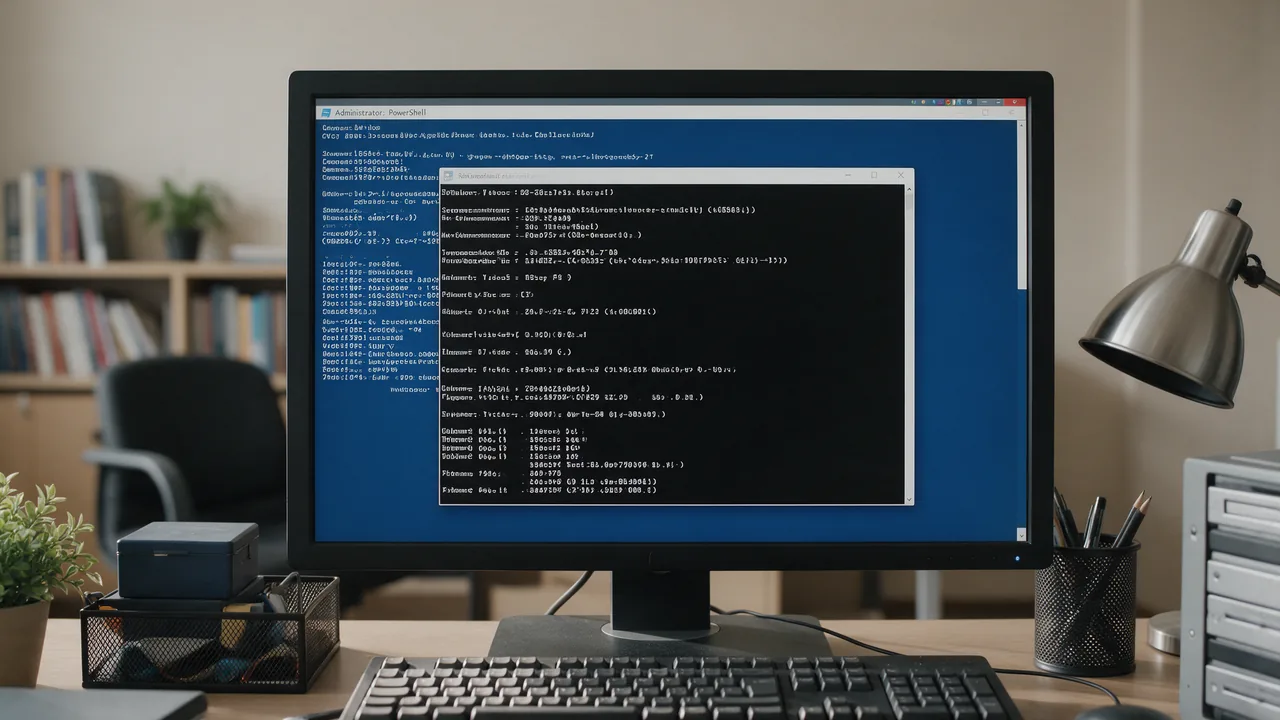
To open Command Prompt in Windows 10 or 11, press Win+R, type cmd and press Enter. To open Command Prompt as administrator, press Ctrl+Shift+Enter in that same Run box instead of Enter, then accept the UAC prompt. PowerShell opens the same way with powershell, and Windows Terminal with wt.
This guide covers every reliable way to launch the command line, the difference between Command Prompt, PowerShell and Windows Terminal, the basic file commands, and the part most website owners actually need: the network commands for checking a site and your connection. If you were searching for the Cmd key on a Mac, that is the Command modifier key on Apple keyboards and has nothing to do with the Windows command line.
How to open Command Prompt in Windows 10 and 11
Command Prompt is the program cmd.exe in C:\Windows\System32. It pays to know several ways to start it, because at least one keeps working when the Start menu or File Explorer hangs.
Run dialog (Win+R)
The fastest method on every Windows version since XP. Press Win+R, type cmd in the Open field and press Enter. The window starts in your user profile folder, for example C:\Users\John. The same box launches powershell and wt (Windows Terminal, if installed).
Start menu search
Press the Windows key and type cmd or "command prompt". Enter opens it with standard rights; the right-hand pane has "Run as administrator".
The Win+X menu
Press Win+X or right-click the Start button. On Windows 11 the menu shows "Terminal" and "Terminal (Admin)". On Windows 10 since version 1703 it shows Windows PowerShell by default; to get Command Prompt back, go to Settings, Personalization, Taskbar and turn off the option that replaces Command Prompt with Windows PowerShell in that menu.
Windows Terminal
On Windows 11 22H2 and later, Windows Terminal is the default console host. It usually opens a PowerShell tab; open the drop-down arrow next to the "+" button and choose "Command Prompt" for a cmd tab. The profile that opens at launch is set in Terminal's Settings under Startup.
How to open cmd in a specific folder
In File Explorer, click the address bar, replace the path with cmd and press Enter: Command Prompt opens already inside that folder. On Windows 11 you can also right-click empty space in the folder and choose "Open in Terminal". On Windows 10, Shift+right-click shows "Open PowerShell window here".
Windows 7 and the recovery environment
On Windows 7: Start, All Programs, Accessories, Command Prompt, or simply Win+R. If Windows won't boot, the recovery environment has it under Troubleshoot, Advanced options, Command Prompt.
How to open Command Prompt as administrator
Some commands refuse to run without elevation. netstat -b, for example, answers "The requested operation requires elevation", and editing system files such as hosts ends in "Access is denied". Ways to get an elevated window:
- Win+R, type
cmd, press Ctrl+Shift+Enter. The quickest route on Windows 10 and 11. - Start search: type
cmd, then click "Run as administrator" or press Ctrl+Shift+Enter on the highlighted result. - Win+X, "Terminal (Admin)" on Windows 11 or "Windows PowerShell (Admin)" on Windows 10. You get elevated PowerShell; typing
cmdthere starts Command Prompt with the same rights. - A shortcut: right-click a Command Prompt shortcut, Properties, Advanced, tick "Run as administrator" so it always opens elevated.
How to open Command Prompt as administrator without the Start menu?
Use Task Manager. Press Ctrl+Shift+Esc, choose File, "Run new task" (on current Windows 11 builds it is a "Run new task" button at the top), type cmd and tick "Create this task with administrative privileges". Win+R with Ctrl+Shift+Enter also works without touching the Start menu.
To confirm you are elevated: the title bar reads "Administrator: Command Prompt" and the window starts in C:\Windows\System32. Or run net session: without elevation it prints "System error 5 has occurred. Access is denied."
Command Prompt vs PowerShell vs Windows Terminal
People mix these up constantly. There are two shells (cmd and PowerShell) and one window application that hosts them (Terminal).
| Command Prompt | Windows PowerShell 5.1 | PowerShell 7 | Windows Terminal | |
|---|---|---|---|---|
| What it is | Command interpreter | Shell and scripting language | Cross-platform PowerShell | Tabbed host for any shell |
| Executable | cmd.exe | powershell.exe | pwsh.exe | wt.exe |
| Availability | Every Windows version | Built into Windows 10 and 11 | Separate install | Built into Windows 11; Microsoft Store on Windows 10 |
| Output | Text | .NET objects | .NET objects | Depends on the shell |
| Scripts | .bat, .cmd | .ps1 | .ps1 | n/a |
| Best for | Legacy instructions, batch files, quick ping/ipconfig | Windows administration, network cmdlets | New scripts, also on Linux and macOS | Working with several shells side by side |
Rule of thumb: standalone utilities such as ping, tracert, ipconfig, nslookup and netstat behave identically in both shells because they are separate executables. Built-in cmd commands do not: in PowerShell, dir and del are aliases for cmdlets, so dir /s or del /q fail or behave differently.
Basic CMD commands list
help prints all built-in commands; any command followed by /? prints its own help, for example dir /?.
| Command | What it does | Example |
|---|---|---|
cd | Change folder; add /d to switch drives too | cd /d D:\Projects |
dir | List a folder; /s recurses, /a includes hidden files | dir /a |
tree | Folder tree; /f includes files | tree /f |
cls | Clear the screen | cls |
copy, move | Copy or move files | copy report.txt D:\Backup\ |
del | Delete files, bypassing the Recycle Bin | del /q *.tmp |
md, rd | Create or remove a folder; rd /s /q removes contents too | md logs |
type | Print a text file | type C:\Windows\System32\drivers\etc\hosts |
start | Open a file, folder or URL with its associated app | start "" "C:\Docs\plan.pdf" |
The empty quotes after start are the window title. Without them, start treats a quoted path as the title and opens a new cmd window instead of your file. Many system tools also start by name from cmd or Win+R: control, ncpa.cpl (network connections), devmgmt.msc (Device Manager), services.msc, taskmgr. Be careful with del and rd /s /q: there is no confirmation and no Recycle Bin, so run the same pattern with dir first.
Network commands in CMD for checking a website
These commands run without elevation unless noted. Keep their limit in mind: they show the picture from your machine, through your DNS resolver, your ISP and your route. When a site works for you but not for customers, or the other way round, you need a second vantage point outside your network.
ping: is the host reachable, and how fast
ping example.com
ping -n 20 example.com
ping -t example.com
Windows sends 4 echo requests by default; -n sets the count, -t pings until you press Ctrl+C, -4/-6 force IPv4 or IPv6. A healthy line reads "Reply from 203.0.113.10: bytes=32 time=35ms TTL=56", followed by statistics with a loss percentage. Common failures: "Ping request could not find host" means the name did not resolve, so look at DNS; "Request timed out" means no reply, which is often just a server or CDN that drops ICMP; "Destination host unreachable" usually points at your own network or router. A site can serve HTTPS perfectly and ignore ping, so treat ping as a connectivity test, not an uptime test. Compare with the external ping check, and see how to check if a website is up, including from cmd.
tracert: where the route breaks
tracert example.com
tracert -d -h 20 example.com
tracert lists the routers between you and the host with the latency to each. -d skips reverse DNS lookups and makes it much faster; -h sets the maximum hops (30 by default). A few "Request timed out" rows in the middle are normal: that router ignores the probes but forwards traffic. Timeouts that start at one hop and continue to the end are the real signal. Run the same trace from outside with online traceroute: a clean external path plus a broken local one means the problem is your ISP, not the site.
nslookup: what DNS returns
nslookup example.com
nslookup example.com 8.8.8.8
nslookup -type=mx example.com
The first form asks your configured resolver, the second asks a specific server (Google Public DNS here), the third fetches mail MX records. "Non-authoritative answer" is not an error; it only means the reply came from a recursive resolver's cache rather than the zone's authoritative server. If your resolver and 8.8.8.8 return different IPs, a DNS change has not propagated everywhere yet or your ISP holds a stale cache. The nslookup guide covers every mode, and the DNS lookup tool shows your records from an external resolver.
ipconfig: addresses, DNS servers and cache
ipconfig /all
ipconfig /displaydns
ipconfig /flushdns
ipconfig /all lists every adapter's IPv4 and IPv6 addresses, default gateway, DNS servers and DHCP status, which is the first thing to read when "the internet works but sites don't". /displaydns dumps the local DNS cache, and /flushdns clears it with "Successfully flushed the DNS Resolver Cache." That helps when a domain has moved to a new IP but your PC still remembers the old one. It does not clear the browser's own cache; see how to flush DNS cache for the rest.
netstat: which ports your PC is using
netstat -ano
netstat -ano | findstr :443
tasklist /fi "PID eq 1234"
-a shows all connections and listening ports, -n keeps addresses numeric, -o adds the owning PID, which tasklist maps to a process name. Rows in the LISTENING state are ports your machine has opened. -b prints the executable name directly but needs an elevated prompt. netstat cannot tell you whether a firewall or router lets that port through from the internet; for that, scan it from outside with the port scanner and read how to check open ports.
curl: status code and HTTP headers
curl -I https://example.com
curl -s -D - -o NUL https://example.com
curl -v https://example.com -o NUL
curl.exe ships with Windows 10 version 1803 and later and with Windows 11. -I sends a HEAD request and prints headers only; the first line holds the protocol and status, such as HTTP/1.1 200 OK or a 301 with a Location header. Some servers answer HEAD differently from GET, so the second form performs a real GET, prints headers (-D -) and discards the body into NUL. -v adds connection and TLS handshake detail. In Windows PowerShell 5.1, curl is an alias for Invoke-WebRequest, so type curl.exe there. The same headers fetched from an external server are shown by the HTTP header checker. Option reference: curl man page.
PowerShell network commands
Test-NetConnection: is a port open on the server?
Test-NetConnection example.com -Port 443
Test-NetConnection example.com -Port 3389 -InformationLevel Quiet
Test-NetConnection example.com -TraceRoute
Read the TcpTestSucceeded line: True means the TCP handshake completed, False means the port is closed or filtered somewhere on the path, and a "TCP connect to ... failed" warning appears. RemoteAddress tells you which IP was actually tried. With -InformationLevel Quiet it returns a bare True or False for scripts, and tnc is the short alias. It replaces the old telnet trick described in checking a port with Telnet. Parameters: Test-NetConnection on Microsoft Learn.
Resolve-DnsName: DNS queries with a chosen server and record type
Resolve-DnsName example.com
Resolve-DnsName example.com -Type MX -Server 8.8.8.8
Clear-DnsClientCache
The PowerShell counterpart of nslookup, returning a table of name, type, TTL and data. -Type accepts A, AAAA, MX, TXT, NS, CNAME and more; -Server picks the resolver. Clear-DnsClientCache is the equivalent of ipconfig /flushdns. Reference: Resolve-DnsName documentation.
Cheat sheet: cmd, PowerShell and an external check
| Task | cmd | PowerShell | From outside |
|---|---|---|---|
| Is the host reachable | ping example.com | Test-Connection example.com | /ping |
| Where the route breaks | tracert example.com | Test-NetConnection example.com -TraceRoute | /traceroute |
| What DNS returns | nslookup example.com | Resolve-DnsName example.com | /dns |
| Flush DNS cache | ipconfig /flushdns | Clear-DnsClientCache | n/a |
| Is a port open | telnet example.com 443 (optional feature) | Test-NetConnection example.com -Port 443 | /port-scanner |
| Status code and headers | curl -I https://example.com | curl.exe -I https://example.com | HTTP headers |
| Your own listening ports | netstat -ano | Get-NetTCPConnection -State Listen | n/a |
How to check a website from outside your network
The command line answers "what does my computer see". To learn what everyone else sees, run the same check from an enterno server, which sits on a different network with a different resolver and route:
- Online ping: if the host answers from outside but not from you, the fault is in your network or ISP.
- DNS records check: compare with your local
nslookup; a mismatch points to caching or an unfinished record change. - HTTP header and availability check: the status code and headers as an external client gets them, to set against your local
curl -I.
Microsoft maintains the full reference of built-in commands: Windows commands.
Frequently asked questions
What is the keyboard shortcut to open Command Prompt?
There is no dedicated one. The shortest path is Win+R, cmd, Enter; Ctrl+Shift+Enter instead of Enter opens it as administrator. Win+X opens a menu that includes Terminal (Admin) on Windows 11.
Is PowerShell replacing Command Prompt?
Command Prompt is still included in Windows 10 and 11, but Microsoft pushes PowerShell and Windows Terminal as the defaults. For network checks it rarely matters: ping, tracert and ipconfig run the same in both.
Why does ping fail when the website loads?
The server or the CDN in front of it drops ICMP. What matters for a website is port 443 and the HTTP response: test with Test-NetConnection site -Port 443 and curl -I https://site.
How do I see all CMD commands?
Type help for the list of built-in commands and command /? for details on one. In PowerShell use Get-Command and Get-Help.
How do I stop a running command?
Press Ctrl+C, for example to end ping -t. Type exit to close the window.