In short. Your public IP is what websites see — check it via the IP lookup or curl ifconfig.me. The local address comes from your router: run ipconfig on Windows, ipconfig getifaddr en0 on macOS, ip a on Linux. The router IP equals your default gateway. A server IP comes from its A record via dig or nslookup.
Nearly every difficulty in finding an IP address comes from one confusion: a single computer has at least two addresses at the same time, and they never match. One is handed out by your router for the internal network, the other belongs to your provider and is visible from the outside. Below is how to get each one with built-in tools, and how not to mistake a server address for a person.
Public vs local IP address: what is the difference
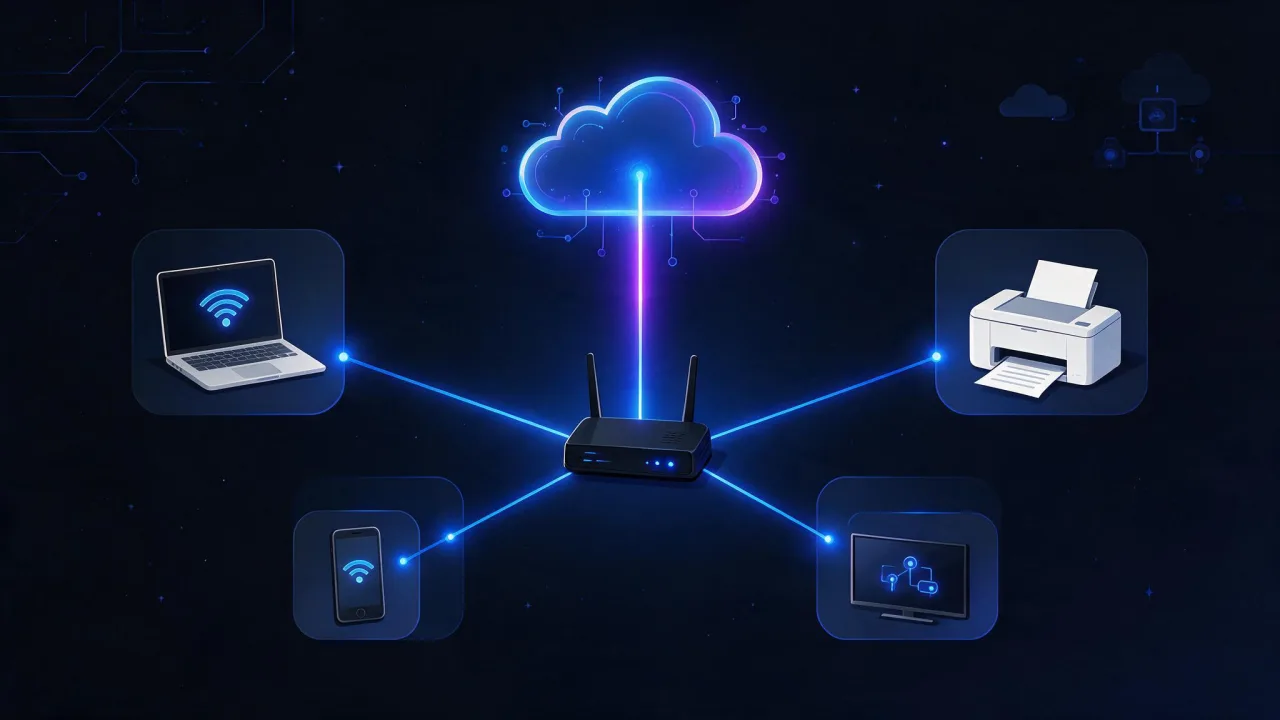
The public address is how your network is seen on the internet. Your provider assigns it, and it is the one that lands in the logs of every site you visit. The local (private) address is assigned by your router over DHCP to each device inside the network: laptop, phone, printer, TV. Private addresses are not routed on the internet — NAT on the router translates them into the public one.
The practical consequence: if ten devices in a flat open the same site, the site sees one address — the router's. And knowing that address, you cannot tell which device made the request.
Private ranges are fixed by standards and identical worldwide. Learning them by sight is worth the minute: once you see 192.168.x.x, you instantly know you are looking at a local address, not a public one.
| Address type | Typical range | Assigned by | Who can see it |
|---|---|---|---|
| Private (LAN) | 10.0.0.0/8, 172.16.0.0/12, 192.168.0.0/16 | Router via DHCP | Devices inside the network only |
| Public | Any non-reserved range | Internet provider | Every site and service online |
| CGNAT (carrier NAT) | 100.64.0.0/10 | Internet provider | The provider network only |
| Link-local (APIPA) | 169.254.0.0/16 | The OS, when DHCP does not answer | Neighbours on the same segment |
| Loopback | 127.0.0.0/8, ::1 | The OS | The machine itself only |
| IPv6 global | usually starts with 2000::/3 | Provider or router | Every IPv6-capable site |
| IPv6 local | fe80::/10 (link-local), fc00::/7 (ULA) | The OS or router | The local network only |
Private ranges are defined in RFC 1918 and carrier-grade NAT in RFC 6598. Addresses such as 192.0.2.10 and 203.0.113.5 in the examples below come from the documentation ranges reserved by RFC 5737 — they belong to nobody.
A public IP address is not "the address of the computer". A screenshot of a "your IP" page tells you nothing about what the operating system assigned to the network card inside the network, and the reverse is equally true.
How to find your own IP address
"My IP" almost always means the public address. The fastest route is the IP lookup page: it shows the address as the server sees it, plus the provider, the autonomous system and an approximate region. From a terminal, any echo service returns the same thing:
# public IPv4
curl -4 https://ifconfig.me
curl -4 https://api.ipify.org

# public IPv6, if your provider hands one out
curl -6 https://ifconfig.me

# the same answer over DNS, no HTTP involved
dig +short myip.opendns.com @resolver1.opendns.com
That last command is useful where HTTP is filtered or proxied: the OpenDNS resolver replies with the address the DNS query arrived from. The -4 and -6 flags force a specific protocol — without them the result depends on which stack the system picked first, and you may get IPv6 where you expected IPv4.
With a VPN or corporate proxy enabled, all of these show the exit node address rather than your provider's. That is not an error — that address is exactly what sites will see.
How to find your computer's IP address on Windows
Using ipconfig
Open Command Prompt or PowerShell and run ipconfig. For the active adapter you need three lines: IPv4 Address, Subnet Mask and Default Gateway. The first is your computer's local address, the third is the router.
ipconfig

:: IPv4 lines only
ipconfig | findstr /i "IPv4"

:: full output: MAC address, DHCP, DNS servers, lease time
ipconfig /all

:: force a new lease if DHCP handed out the wrong thing
ipconfig /release
ipconfig /renew
A typical fragment looks like this (documentation addresses):
Wireless LAN adapter Wi-Fi:

   IPv4 Address. . . . . . . . . . . : 192.0.2.10
   Subnet Mask . . . . . . . . . . . : 255.255.255.0
   Default Gateway . . . . . . . . . : 192.0.2.1
If several adapters are listed — Wi-Fi, Ethernet, plus virtual adapters from VirtualBox, Docker or a VPN — look at the one that has a Default Gateway filled in. That is the path your traffic actually takes.
Using PowerShell
PowerShell returns structured output that is easy to filter and reuse in scripts:
Get-NetIPAddress -AddressFamily IPv4 | Select-Object InterfaceAlias, IPAddress, PrefixLength

# address, gateway and DNS in one call
Get-NetIPConfiguration

# default gateway only
Get-NetRoute -DestinationPrefix "0.0.0.0/0" | Select-Object InterfaceAlias, NextHop

# DNS servers for the adapter
Get-DnsClientServerAddress -AddressFamily IPv4
An address in the 169.254.x.x range means no DHCP server answered and the system assigned an address to itself. There will be no internet on such an address: check the cable, the Wi-Fi link and the router's power.

How to find your computer's IP address on macOS and Linux
macOS
macOS has a short command that returns exactly one address for a given interface, which makes it convenient inside scripts:
# address of a specific interface (en0 is usually Wi-Fi on laptops)
ipconfig getifaddr en0

# which interfaces exist and what hardware they map to
networksetup -listallhardwareports

# address together with the subnet mask
ifconfig en0 | grep "inet "

# default gateway
netstat -rn -f inet | grep default

# DNS servers currently in use
scutil --dns | grep nameserver
On macOS ifconfig prints the mask in hexadecimal: netmask 0xffffff00 is the same as 255.255.255.0, that is a /24 prefix. If ipconfig getifaddr en0 returns nothing, that interface is simply not connected — try another one, such as en1 or an Ethernet adapter from the networksetup list.
Linux
The current tool is ip from the iproute2 package. The old ifconfig is no longer installed by default on many distributions, so do not build habits or scripts around it.
# compact summary of every interface
ip -4 -br addr show

# full detail, with masks and flags
ip a

# every address of the machine on one line
hostname -I

# default gateway
ip route show default

# which address will be used as the source going out
ip route get 1.1.1.1
ip route get answers the most practical question of all: when a machine has several interfaces, which address does it use to reach the internet. The field to read is src:
$ ip route show default
default via 192.0.2.1 dev eth0 proto static metric 100

$ ip route get 1.1.1.1
1.1.1.1 via 192.0.2.1 dev eth0 src 192.0.2.10 uid 0
DNS servers depend on the resolver stack in use. Under systemd-resolved, resolvectl status reports them. The universal fallback is /etc/resolv.conf, but note that with systemd-resolved it usually contains the stub address 127.0.0.53 rather than the real upstream servers.
| Task | Windows | macOS | Linux |
|---|---|---|---|
| Local address | ipconfig | ipconfig getifaddr en0 | ip -4 -br addr show |
| Gateway (router address) | ipconfig → Default Gateway | netstat -rn -f inet | grep default | ip route show default |
| Public address | curl -4 https://ifconfig.me | curl -4 https://ifconfig.me | curl -4 https://ifconfig.me |
| DNS servers | ipconfig /all | scutil --dns | resolvectl status |
| IP of a domain | nslookup example.com | dig +short example.com | dig +short example.com |
| Neighbours on the LAN | arp -a | arp -a | ip neigh show |
How to find your router's IP address
The router address is your computer's default gateway. There is nothing separate to look up: the same commands that show the local address show it too. On Windows it is the Default Gateway line in ipconfig, on macOS the value after default in netstat -rn, on Linux the address after via in ip route show default.
# Windows
ipconfig | findstr /i "Gateway"
route print -4

# macOS
route -n get default

# Linux
ip route show default
Vendors most often use 192.168.0.1, 192.168.1.1, 192.168.100.1 or 10.0.0.1, but guessing is a bad habit: the provider or a previous owner may have changed the subnet. The command gives an exact answer in a second.
Another way to see the router is a route trace: the first hop toward any external host is your gateway. That helps when several routers are chained — an ISP box plus your own, for instance — and you need to find where connectivity actually breaks.
# Windows
tracert -4 example.com

# macOS and Linux
traceroute example.com
If the gateway field is empty or equal to the computer's own address, the device never received a default route. No internet will work in that state, even though the local network is visible and pings inside it succeed.
How to find the IP address of a server or website
A website's IP address is not a property of the domain — it is the result of resolving its A record (IPv4) or AAAA record (IPv6). So the question is always answered through DNS.
# short answer: addresses only
dig +short example.com A
dig +short example.com AAAA

# ask a specific resolver, bypassing your provider's cache
dig @1.1.1.1 +short example.com A

# Windows: nslookup ships with the system
nslookup example.com
nslookup -type=AAAA example.com

# Windows, PowerShell
Resolve-DnsName example.com -Type A

# a dig alternative on macOS and Linux
host example.com
When you need the whole picture — A, AAAA, MX, NS and TXT at once, from several resolvers — the DNS lookup is faster. If a domain has just moved and answers disagree, the DNS propagation check shows what resolvers in different countries return, separating "the record has not spread yet" from "the record is wrong".
Three reasons the "site IP" turns out not to be what you expected:
- CDN and reverse proxies. Behind Cloudflare and similar services the A record points at a delivery-network edge node, not at your server. The address differs by city and will not match the one in your hosting panel.
- Multiple A records. A domain may return a pool of addresses for balancing — resolvers hand them out in varying order, and there is no single "correct" one.
- GeoDNS. The answer depends on where the resolver sits: London and Frankfurt legitimately receive different addresses.
Behind a CDN you see an edge node, not the server. Trying to "uncover the real IP" of somebody else's site through third-party databases is unreliable and pointless: such data goes stale quickly, and the attempt to bypass a protection layer may itself breach the service's terms.
Your own server is easiest to simply ask. On a rented VPS the public address usually sits directly on the interface with no NAT in front of it, unlike a home computer:
$ ip -4 -br addr show
lo               UNKNOWN        127.0.0.1/8
eth0             UP             203.0.113.25/24

$ hostname -I
203.0.113.25 192.168.122.1 172.17.0.1
Note that hostname -I returned several addresses. The extra ones are internal Docker and virtualisation bridges. The public address here is the one on eth0, matching what ip route get reports.

How to find the IP address of a device on your network
This is about your own network: a printer, a NAS, a camera, a TV, a smart speaker. Three working approaches, from simplest to most precise.
The router's DHCP lease table. The most reliable route. The router's web interface lists every issued address with device names and MAC addresses. The same screen usually lets you reserve an address so it survives reboots.
The computer's ARP table. It lists neighbours you have already exchanged traffic with. If a device is missing, talk to it first — open its web interface or send a print job — and run the command again.
# Windows and macOS
arp -a

# Linux
ip neigh show
The output pairs IP addresses with MAC addresses. The first three bytes of a MAC identify the vendor, which often tells you which device you are looking at without walking around checking every socket.
Scanning your own subnet. If a device stays silent and never appears in ARP, sweep the range. The nmap utility is normally not part of a base system and has to be installed:
# sweep a range without scanning ports
nmap -sn 192.168.1.0/24

# substitute your own subnet: read it from ip a or ipconfig
Only scan networks you are responsible for. Sweeping somebody else's network — a cafe hotspot or an employer's LAN without written permission — is not diagnostics; it is unauthorised interference with infrastructure you do not own.
How to find your network address and range
The "network address" is the subnet plus its mask, for example 192.168.1.0/24. It follows from your local address and mask: the mask marks which part of the address identifies the network and which identifies the host. Linux and ip a print the prefix after a slash straight away; Windows and macOS show a mask you have to convert.
| Subnet mask | Prefix | Total addresses | Usable hosts |
|---|---|---|---|
| 255.255.255.240 | /28 | 16 | 14 |
| 255.255.255.192 | /26 | 64 | 62 |
| 255.255.255.128 | /25 | 128 | 126 |
| 255.255.255.0 | /24 | 256 | 254 |
| 255.255.254.0 | /23 | 512 | 510 |
| 255.255.252.0 | /22 | 1024 | 1022 |
| 255.255.0.0 | /16 | 65,536 | 65,534 |
Two addresses in every subnet are unavailable to hosts: the first identifies the network itself, the last is the broadcast address. That is why a home /24 holds 254 devices rather than 256. Knowing the range matters for scanning, for assigning static addresses outside the DHCP pool, and for firewall rules.
Can you find someone else's IP address
Two very different questions hide behind this one.
Another server's address — yes, that is public information. A website must publish its address, otherwise nobody could connect to it. That is exactly what dig does, and there is nothing private about the query.
A specific person's address — no. Social networks, messengers and mail services do not hand out their users' addresses: the request travels through their servers, so the outside world sees the platform. Services promising to "find an IP by username or phone number" show invented data at best and harvest your money and details at worst.
It is equally useful to know what an IP address actually tells whoever receives it:
- It reveals: the provider and autonomous system number, the connection type (residential, mobile, data centre, VPN) and an approximate region, usually at city level or wider.
- It does not reveal: a name, a street address, a phone number or a device model. The subscriber-to-address mapping exists only at the provider and is disclosed only through lawful process.
Geolocation is even rougher on mobile networks and under CGNAT, where hundreds of subscribers in one region share a single public address. If a site guessed a neighbouring city, that is how geolocation databases work, not a sign of a fault.
Legally, an IP address is not a harmless technical identifier either. Under the GDPR it is generally treated as personal data when it can be linked to an individual, directly or with help from the provider. The practical takeaway for a site owner: visitor addresses in logs are data that needs a retention period and restricted access, not "technical noise" to be kept forever.

How to check an IP address online
The command line covers local tasks, but when you need to see yourself from the outside — through a server's eyes — browser checks are faster. The order to work through:
- Your public address and geolocation. Open the IP lookup: it shows the address as the server sees it, plus provider, autonomous system and region. It is also where you confirm a VPN is actually working and not leaking your real address.
- A domain's address. The DNS lookup returns A and AAAA records together with the rest of the zone. If several addresses exist you see the whole pool rather than one cached answer.
- Different answers in different places. The DNS propagation check queries resolvers across countries — that is how you tell an unfinished zone update from a broken record.
- Whether the address is alive. Ping reports reachability and latency; a route trace shows where along the path packets are lost.
- Continuous control. If a server address is not supposed to change, put the domain under monitoring: an A-record change or a dead node is caught immediately instead of a day later through a customer complaint.
Frequently asked questions
Why does my IP address keep changing
Most residential plans issue a dynamic address: it is assigned for the session and changes after a reconnect or on the provider's own timer. The local address can change too, once a DHCP lease expires. The difference between dynamic and static addressing, and when paying for a static one is justified, is covered in the article on static and dynamic IP.
I have both IPv4 and IPv6 — which one is real
Both. They are two independent protocols running in parallel, and a device may hold one IPv4 plus several IPv6 addresses, including temporary privacy addresses the system rotates on its own. Which one a site sees depends on the protocol the connection was established over. A full comparison is in the piece on IPv4 and IPv6.
My hosting panel shows one address, curl shows another
The usual cause is an intermediate node: a load balancer, a floating IP, a NAT gateway or an egress proxy. Outbound traffic may leave through a different address from the one inbound connections arrive on. Run ip route get 1.1.1.1 — it shows which address the system picks as the source when going out.
How do I find the IP address of a printer or TV
Fastest is the router's DHCP lease table, where devices are listed by name. Alternatively, talk to the device (open its interface, send a print job) and check arp -a. Many printers also print their address on a configuration page generated from the device itself.
What does an address like 169.254.x.x mean
That no DHCP server replied and the system assigned an address to itself. Such a device sees only neighbours on the same segment and has no internet access. Check the cable and Wi-Fi, restart the router, then run ipconfig /renew on Windows or re-enable the interface.
My server logs show the same address for every visitor
That means the server sits behind a reverse proxy or CDN and sees the proxy rather than the client. The real address arrives in the X-Forwarded-For or X-Real-IP header, and the application must be configured to trust that header only from known proxies. To see which headers actually reach you, use the HTTP header check.
Checklist
- Decide which address you need: the public one is what sites see, the local one is assigned by the router.
- Public address: the IP lookup or
curl -4 https://ifconfig.me. - Local address:
ipconfigon Windows,ipconfig getifaddr en0on macOS,ip -4 -br addr showon Linux. - The router address is the default gateway:
ip route show defaultor the Default Gateway line inipconfig. - A domain's address comes from A and AAAA records:
dig +short example.com Aor the DNS lookup. - Check whether a CDN sits in front of the server — then the visible address is an edge node.
- Look for devices on your own network in the router's DHCP table first, then in
arp -a. - An address in
169.254.x.xsignals a failed DHCP exchange, not a working configuration. - Scan only your own network, and only with the owner's permission.
- Remember: an IP address points at a network and a provider, not at a person or a point on a map.