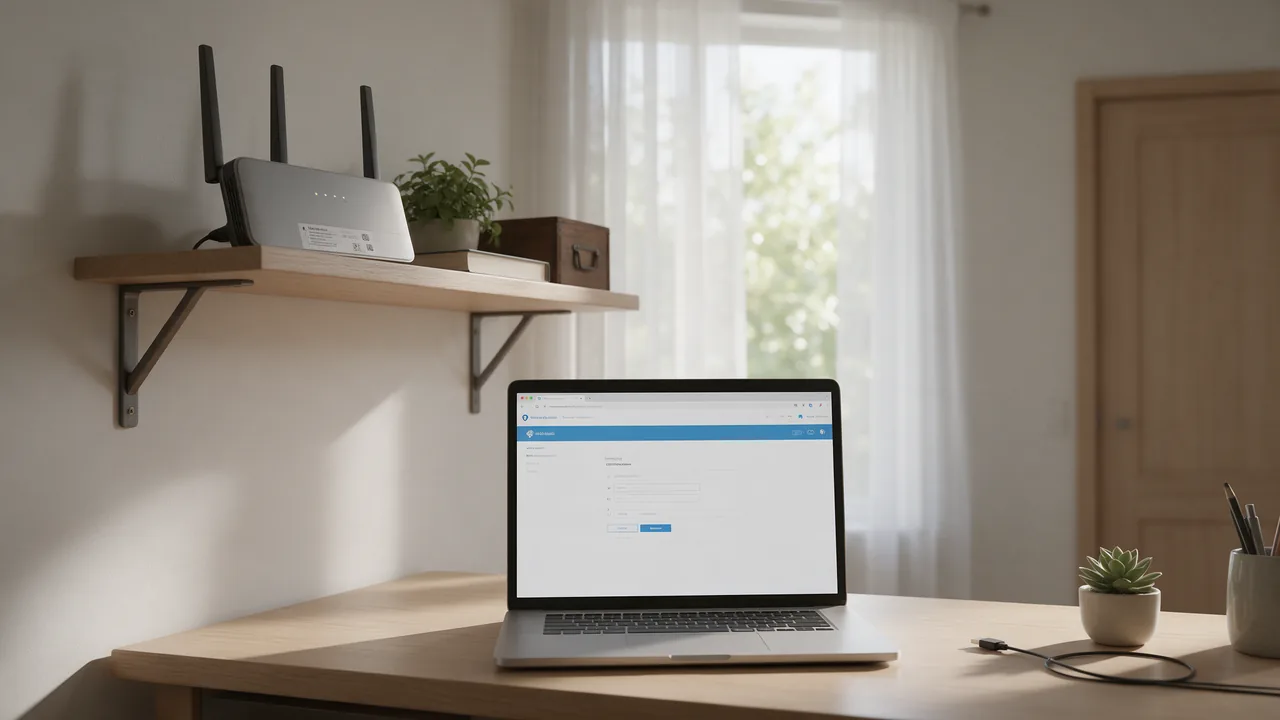
The 192.168.1.1 router login page opens in any browser: join the router's network by cable or Wi‑Fi, type http://192.168.1.1 into the address bar rather than a search box, and sign in with the credentials printed on the router's label. If nothing loads, your router uses another address, often 192.168.0.1, and the Default Gateway line in ipconfig shows the real one.
What 192.168.1.1 actually is
192.168.1.1 is a private IPv4 address. RFC 1918 sets aside three ranges for internal networks, and none of them is routed on the public internet. That is why the same address can sit in millions of homes without conflict: from the outside, each home is seen under the public IP its provider assigned.
| Private range | Prefix | Typical use |
|---|---|---|
| 10.0.0.0 – 10.255.255.255 | /8 | Corporate networks, some ISP gateways (Xfinity uses 10.0.0.1) |
| 172.16.0.0 – 172.31.255.255 | /12 | Offices, Docker and virtual machine networks |
| 192.168.0.0 – 192.168.255.255 | /16 | Home routers: 192.168.1.1, 192.168.0.1, 192.168.1.254 |
Your router takes an address in its own subnet and acts as the default gateway: every packet leaving your laptop or phone for the internet goes through it. The same address hosts a small built-in web server with the admin panel, where you change the Wi‑Fi password, enter ISP settings and forward ports. Handing out addresses to your devices is the router's DHCP server's job; our guide to DHCP explains how that lease process works.
Find your router's IP address first
Guessing between 192.168.1.1 and 192.168.0.1 wastes time. Any device already connected to the router knows its address, because that address is its gateway.
Windows
ipconfigLook under the active adapter (Wireless LAN adapter Wi‑Fi or Ethernet adapter) for Default Gateway . . . : 192.168.1.1. The full list of switches is in Microsoft's ipconfig reference. In PowerShell you can pull just the gateway:
(Get-NetRoute -DestinationPrefix 0.0.0.0/0).NextHopmacOS
route -n get default | grep gatewayOr open System Settings → Wi‑Fi → Details next to your network → TCP/IP, and read the Router field.
Linux
ip route show default
default via 192.168.1.1 dev wlan0 proto dhcp metric 600
The address after via is your router.
iPhone and Android
On iPhone: Settings → Wi‑Fi → tap the i next to your network → Router. On Android the path varies by manufacturer, but it usually starts at Settings → Network & internet (or Connections) → Wi‑Fi → the gear icon next to the connected network; the gateway appears in the network details or under Advanced.
For your public address and other lookups, see how to find an IP address.
Default router IPs and logins by brand
The label on the bottom of the router is the authoritative source: it lists the login address or hostname, the admin credentials and the Wi‑Fi name. The table shows the defaults you are most likely to meet, but vendors change them between product lines and firmware versions.
| Brand or ISP | Default address | Hostname | Default credentials |
|---|---|---|---|
| Netgear | 192.168.1.1 (some models 192.168.0.1) | routerlogin.net | admin / password on older models; newer ones set a password during setup |
| Linksys | 192.168.1.1 | myrouter.local | Often admin / admin on older models; newer ones set a password during setup |
| ASUS | often 192.168.1.1, 192.168.50.1 on a number of newer models | router.asus.com | admin / admin on older models; newer ones require a new password in the setup wizard |
| TP-Link | 192.168.0.1 or 192.168.1.1, depending on model | tplinkwifi.net | admin / admin on older models; newer ones ask you to create a password on first login |
| AT&T gateways | 192.168.1.254 | — | Device access code printed on the label |
| BT Hub (UK) | 192.168.1.254 | — | Admin password printed on the hub's card or label |
| Virgin Media Hub (UK) | 192.168.0.1 | — | Password on the hub's label |
| Xfinity gateways (US) | 10.0.0.1 | — | Commonly admin / password until changed; Comcast also offers app-based management |
| eero, Google Nest Wifi | no local web panel | — | Managed only through the vendor's mobile app |
Hostnames such as routerlogin.net or tplinkwifi.net are answered by the router itself, so they only work from inside that router's network.
How to log in to 192.168.1.1 step by step
- Connect to the router: an Ethernet cable into a LAN port (not the one marked WAN or Internet), or its Wi‑Fi. You do not need a working internet connection; the panel works before the ISP link is up.
- Type
http://192.168.1.1into the address bar. Typed into a search box, the address just returns search results. - Enter the admin username and password from the label, or the ones you set earlier.
- On a brand-new router, the setup wizard will ask for a new admin password, the connection type your ISP uses (DHCP, PPPoE with a username and password from the provider, or a static address) and a Wi‑Fi name and passphrase.
Type the http:// prefix explicitly. Many routers serve the panel over plain HTTP only, and browsers that try HTTPS first will either fail to connect or show a certificate warning, because the router's certificate is self-signed. On your own router inside your own network that warning is expected; on public websites it is a real signal, as explained in "Your connection is not private".
Logging in from a phone
The browser steps are identical, with two traps. First, if the router's Wi‑Fi has no internet yet, the phone may decide the network is useless and quietly send traffic over mobile data, so the panel never loads; switch mobile data off during setup and tell the phone to stay connected. Second, guest networks are almost always isolated from the admin panel, so join the main network. Many brands also offer setup apps (Netgear Nighthawk, Linksys, ASUS Router, TP-Link Tether), though some advanced settings are browser-only.
Wrong password? Admin login vs Wi‑Fi password
A router has at least two separate secrets: the admin password for the web panel and the Wi‑Fi passphrase for joining the network. They are often confused, and they are rarely the same. The classic admin / admin pair belongs to older hardware; current models either print a unique password on the label or force you to set one on first login. If someone, including your ISP's installer, already configured the router, the factory password no longer applies.
Factory reset as the last resort
- Find the recessed Reset button on the back.
- With the router powered on, press and hold it with a paperclip until the lights flash or go out together, usually around 10 seconds; the manual gives the exact time for your model.
- Wait for the reboot and log in with the label credentials.
A reset wipes everything: Wi‑Fi name and password, port forwards and your ISP login. If your provider uses PPPoE, have its username and password ready before you press the button. On some models a short press starts WPS instead of a reset.
192.168.1.1 not loading: a quick diagnosis
Start by checking whether the router answers at all:
ping 192.168.1.1

# Windows PowerShell: is the web port open?
Test-NetConnection 192.168.1.1 -Port 80

# macOS / Linux
curl -I http://192.168.1.1
If ping replies and the port test succeeds, the panel is alive and the problem is in the browser. If ping reports "Destination host unreachable" or "Request timed out", your device cannot reach the router at that address.
| Symptom | Likely cause | Fix |
|---|---|---|
| Search results instead of a login page | Address typed into a search box, or a typo such as 192.168.l.1 | Type http://192.168.1.1 into the address bar |
| Ping fails, gateway in ipconfig is different | Your router uses another address | Open the Default Gateway address instead |
| Your IP is 169.254.x.x, no gateway | The device never got a DHCP lease | Check the cable, run ipconfig /release then ipconfig /renew, reboot the router |
| Ping works, page hangs | The router's web server froze, or a browser extension interferes | Try a private window or another browser; power-cycle the router |
| Certificate error or connection reset | The browser forced HTTPS on an HTTP-only panel | Use http:// explicitly |
| Works on the laptop, not on the phone | Mobile data or guest network | Disable mobile data, join the main network |
| No local address opens at all | A VPN client or proxy on the device captures all traffic | Pause it while you configure the router |
If your ISP supplied a modem or ONT and you have your own router behind it, your computer's gateway is your router; the ISP box sits on a different subnet with its own address. arp -a lists the local neighbours your computer has recently talked to.
10.0.0.1 and 192.168.1.254
Not every gateway lives at 192.168.1.1. Comcast Xfinity gateways use 10.0.0.1, another private address from the 10.0.0.0/8 block, while AT&T and BT hubs typically sit at 192.168.1.254. The method does not change: read your default gateway and put that address after http://.
Secure the router once you are in
- Change the admin password if it is still a factory default, and keep it different from the Wi‑Fi passphrase.
- Turn off remote management (often called Remote Management, Web Access from WAN or Remote Access). With it on, the login page is reachable from the internet and gets probed by bots.
- Update the firmware, from the router's own update page or from the vendor's site for your exact hardware version.
- Use WPA2 or WPA3 with a long passphrase. Never leave the network open or on WEP.
- Disable WPS if you do not use push-button pairing; the PIN method has known weaknesses.
- Review port forwards and UPnP. Each rule exposes a device on your network to the internet; see why open ports matter.
How to check
No online service can open 192.168.1.1 for you: it is private and exists only inside your home. What you can check from the outside is how the internet sees your network:
- IP lookup shows your public address. Compare it with the WAN address on the router's status page: if the router shows an address in 100.64.0.0–100.127.255.255 or a private range, and the public one differs, your ISP puts you behind carrier-grade NAT and inbound connections will not reach your router.
- Port scanner against your own public IP confirms that the admin panel (ports 80, 443, 8080) and SSH or Telnet (22, 23) are not exposed after you disable remote management. Scan only addresses you own.
- IP calculator helps when you move the router to a new subnet: it shows the address range and mask so your LAN does not overlap the ISP modem's network. Our subnet mask guide explains the notation.
FAQ
Is 192.168.1.1 better than 192.168.0.1?
No. They differ only in the third number, the subnet. Both are private and equivalent; the manufacturer picks one as the default.
Can I log in to 192.168.1.1 from outside my home?
Not directly, because the address only exists on your local network. For remote access, use the vendor's cloud or app management rather than exposing the web panel to the internet.
Is 192.168.1.1.1 a valid address?
No. An IPv4 address has exactly four numbers from 0 to 255. Variants like 192.168.1.1.1 or 192.168.l.1 are typos and will not reach anything.
How do I change my router's IP address?
In the LAN settings, enter a new address such as 192.168.10.1 and save. After the reboot your devices get new DHCP leases, and the panel moves to the new address.
Why does my router's login page show a security warning?
Because the router uses a self-signed certificate for HTTPS, which browsers cannot verify. On your own router at home this is expected; open the panel over http:// or accept the warning for that address only.